
Overview
Before a trailer (also called equipment or a unit) can be assigned to a driver or a load, it must exist as a record in Alvys. This article walks you through creating a trailer record manually. You can also create multiple trailer records at once using the trailer import tool; the valid equipment type values for that tool are listed in the Variations section below.Prerequisites
You must have the “EditAsset” permission assigned to your user role. Without it, the New Trailer button does not appear on the Trailers page and the trailer form is read-only. Navigate to Assets > Trailers to confirm you can see the New Trailer button before beginning.Steps
-
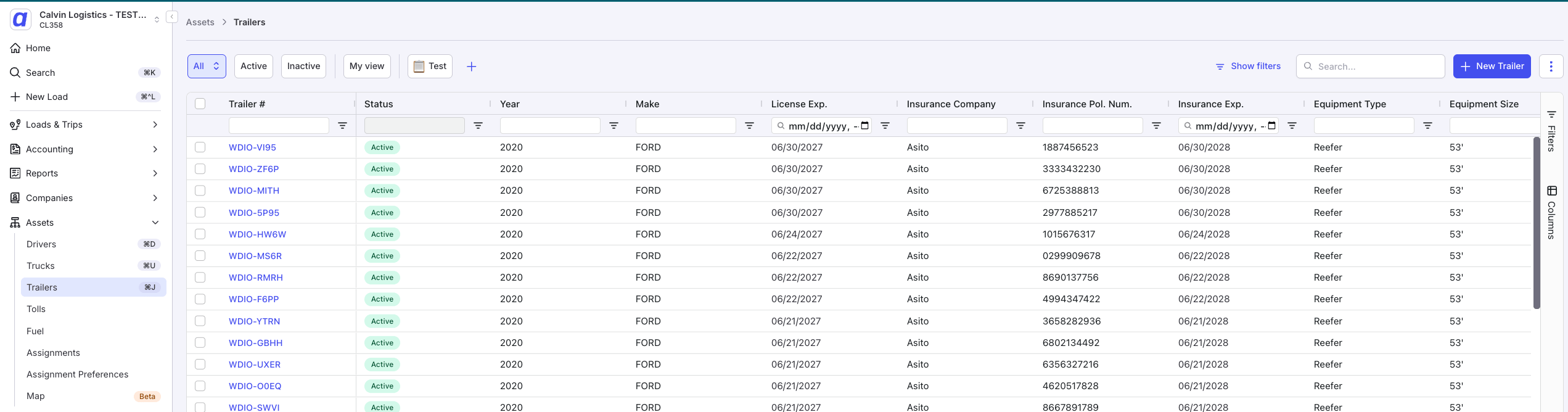
Open the Trailers page. In the left navigation bar, expand the Assets section and select Trailers.
-
Open the new trailer form. Click New Trailer in the top right corner of the Trailers page.
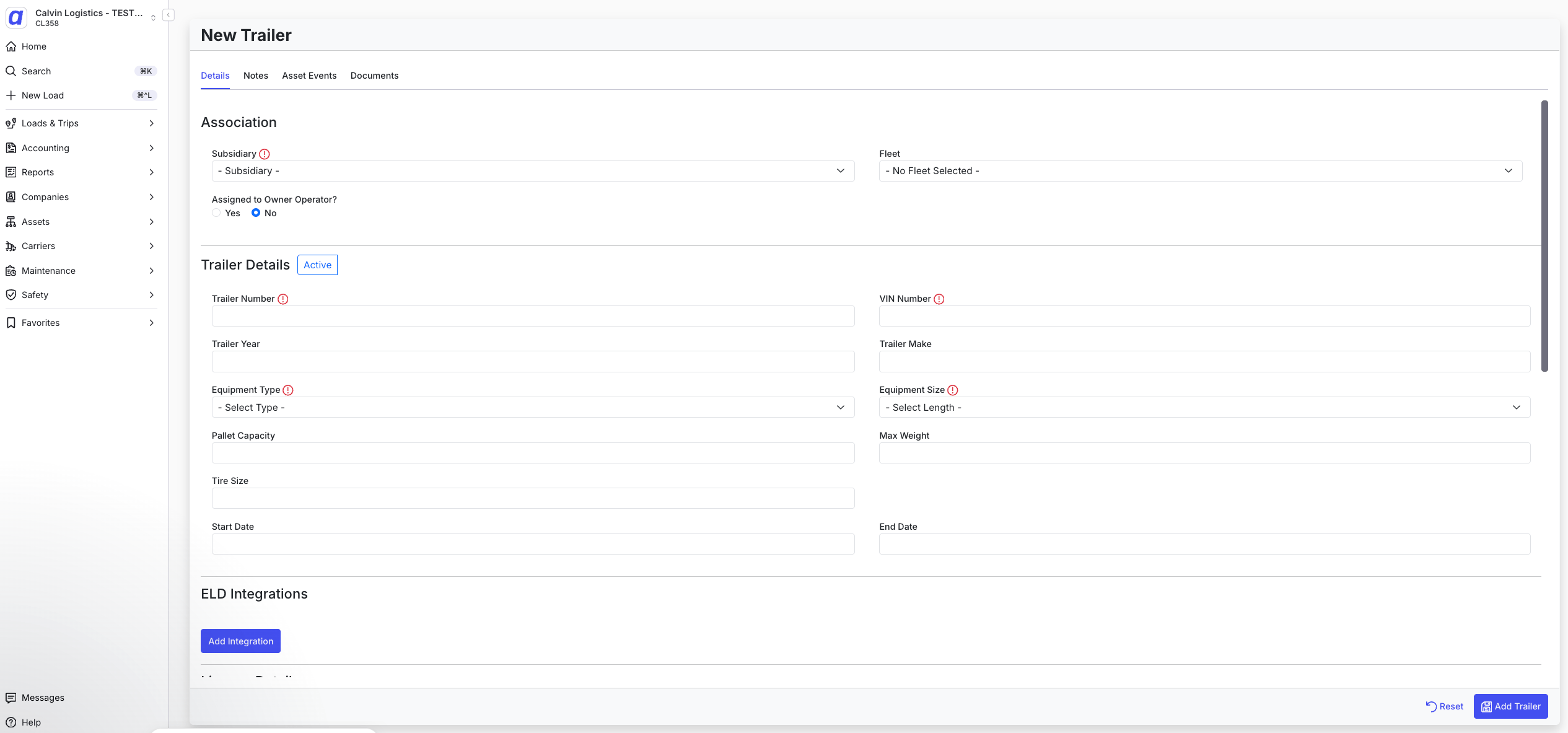
- Fill in the trailer details. Complete the required fields. All four of the following are required before the trailer can be saved:
- Equipment Type — the trailer category (for example, Van, Reefer, Flatbed).
- Equipment Size — the length or size of the trailer.
- Trailer Number — your internal identifier for this trailer.
-
Subsidiary — the subsidiary this trailer is associated with.
Then fill in any additional fields that apply to this trailer:
- License section: License number, license state, license country, and license expiration date.
- Insurance section: Insurance company name, policy number, insurance value, and insurance expiration date.
- Inspection section: Inspection expiration date.
- Leasing section: Leased-from company and leased-to company details, including lease start and end dates.
- Capacity: Pallets and weight.
- Fleet: Assign this trailer to a fleet.
- Year and Make.
- Tire size.
- Routing Specs section: height, width, length, axle count, tire count, empty weight, and GVWR. For a reefer equipment type, a Reefer sub-section adds reefer fuel burn and reefer tank capacity. See Routing specs below.
- Save the trailer. Click Add Trailer at the bottom right of the form.
Routing specs
The Routing Specs section of the trailer form holds the trailer’s dimensions, axle and tire counts, and weights. Alvys uses these specs for routing and cost estimates. Every field in the section is optional, so you can leave it blank and fill it in later.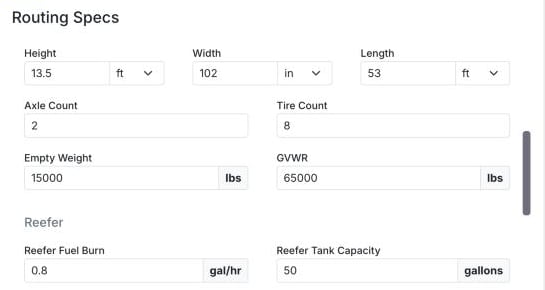
- Height, Width, and Length: the overall size of the trailer. Select the unit (ft, in, or m) from the list next to each field. Width starts in inches.
- Axle Count and Tire Count: the number of axles and the total number of tires on the trailer.
- Empty Weight: the weight of the empty trailer with no cargo (tare weight), in lbs.
- GVWR: the Gross Vehicle Weight Rating, in lbs. This is the maximum loaded weight of the trailer, as set by the manufacturer. GVWR must be at least the Empty Weight.
- Reefer Fuel Burn: the fuel the reefer unit uses per hour while it runs, in gallons per hour.
- Reefer Tank Capacity: how many gallons the reefer unit’s tank holds.
Tire size suggestions
When you type in Tire Size, a list of common trailer tire sizes appears, including low-deck 17.5” and 15” sizes. Select a size from the list, or keep typing to enter any other size. Tire sizes you saved before stay as they are.Number fields
Number fields on the trailer form accept only digits, and a decimal point where a fraction makes sense. You cannot type or paste the letter “e”, a plus sign (+), or a minus sign (−).Variations
Importing multiple trailers at once
If you need to add many trailers, use the Import trailers option from the more-options menu (three-dot icon) on the Trailers page. This option is also controlled by the “EditAsset” permission and will not appear without it. When using the import tool, the Equipment Type values in your import file must match the following list exactly: Van, Reefer, VanorReefer, Flatbed, Auto Carrier, Double Drop, Dump Trailer, FlatbedReefer, Flatbed/Van, Flatbed w/ Pallet Exchange, Flatbed/Step Deck, Flatbed w/ Sides, Flatbed/Reefer/Van, Flatbed - Hazardous, Hotshot, Intermodal, Lowboy, Maxi, Power Only, Removable Goosenec, Reefer/Van, Reefer - Hazardous, Reefer w/ Pallet Exchange, Step Deck, Tanker, Van w/ Curtains, Van w/ Pallet Exchange, Van - Vented, Van - Hazardous, Van - Air-Ride.Troubleshooting
New Trailer button is not visible
- Confirm that you are on the Assets > Trailers page (not the Trucks or Assignments page).
- Check that your user account has the “EditAsset” permission. This permission is required to see the New Trailer button and to access the trailer form. If you do not have it, contact your Alvys administrator to request it be added to your role.
Add Trailer button is greyed out or the form cannot be submitted
- Check that all four required fields are filled in: Equipment Type, Equipment Size, Trailer Number, and Subsidiary. The form cannot be submitted if any required field is blank.
- Check the Trailer Number field. If a VIN number was entered elsewhere that is already in use by another trailer record, the form will display a validation error on that field. Each VIN must be unique.