
Overview
Invoicing Settings (also called billing settings or invoice configuration) give Admins and Partner Admins control over how invoices are generated and delivered. Company-level defaults apply to all customers unless a customer profile overrides them. Five configuration areas are available: Delivery Methods, Document Requirements, Invoice Type, AutoMerge, and the global Invoicing Settings toggle.Where to Find It
Navigate to Management > Company Profile > Invoicing Settings (https://app.alvys.com/#/manage/company-profile) for company-wide defaults.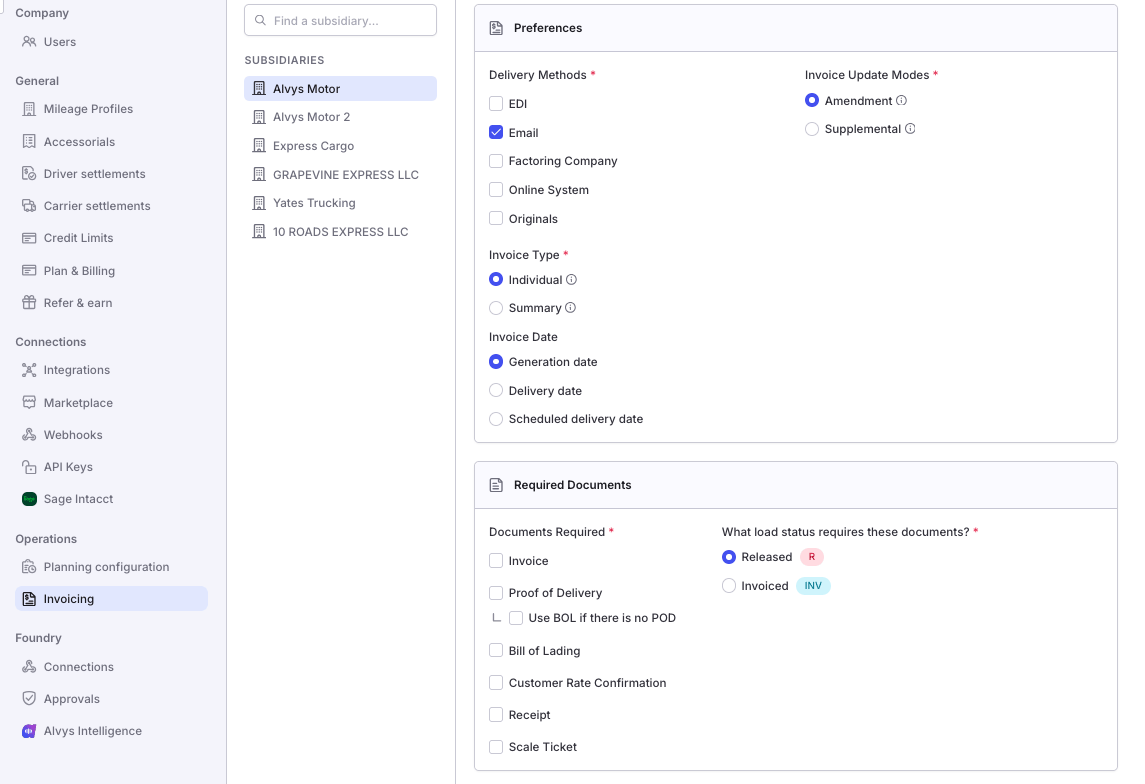
Key Concepts
Delivery Methods: Controls how invoices reach the customer. Options are EDI, Email, Factoring Company, Online System, and Originals. Each method determines which integration or address Alvys uses when the invoice is sent. Document Requirements: Specifies which documents must be present on a load before an invoice can be generated. Requirements are set separately for the Released action and the Invoiced action. When Proof of Delivery is required, you can also allow a Bill of Lading to stand in for a missing POD by turning on Use BOL if there is no POD (see Proof of Delivery and Bill of Lading below). Invoice Type: Sets whether invoices are generated per load (Individual) or grouped into one periodic invoice per customer (Summary). See How to use Summary Invoicing for the full workflow when using the Summary type. Invoice Update Modes: Controls how Alvys handles changes to a load after its invoice has been generated. Amendment updates the original invoice. Supplemental issues a separate supplemental invoice. See Supplemental Invoicing. Invoice Date: Sets which date Alvys puts on a load invoice: the day you generate it, the load’s delivery date, or the load’s scheduled delivery date. The due date counts from the invoice date. See Invoice date below. Add line items into linehaul: A customer-level option under Amendment that shows accessorial charges as part of a single Linehaul line on the invoice PDF. See Add line items into linehaul below. Invoice Date: Sets which date Alvys puts on the invoice. Choose Generation date, Delivery date, or Scheduled delivery date. See Choose the invoice date below. Show full stop address: Shows the street address of each stop on the invoice PDF, not only the city and state. See Show full stop address below. AutoMerge: Automatically consolidates all loads for a customer into one invoice draft. AutoMerge is required when the customer’s Delivery Method is set to Factoring Company; it must be enabled for factoring customers to invoice correctly. Invoicing Settings toggle: When enabled at the company level, these settings apply as the default for all customers. Customer-level settings override the company default for that specific customer only.How to Use It
For invoice generation workflows using these settings, see Batch Invoicing. For the Summary Invoicing workflow, see How to use Summary Invoicing.Proof of Delivery and Bill of Lading
By default, when a subsidiary requires Proof of Delivery, only an actual POD document satisfies that requirement. If your operation historically accepted the Bill of Lading in place of the POD (for example, because your BOL carries the delivery signatures), you can opt in per subsidiary.1
Open Invoicing Settings for the subsidiary
Go to the subsidiary’s Invoicing Settings and find the Required Documents section.
2
Require Proof of Delivery
Under Documents Required, check Proof of Delivery.
3
Allow Bill of Lading as a fallback
Check the indented sub-option Use BOL if there is no POD. This lets an uploaded Bill of Lading satisfy the POD requirement when no POD is present on the load. Turning this on when Proof of Delivery is not yet required will automatically require Proof of Delivery for you.
4
Save
Your changes save with the rest of the subsidiary’s invoicing settings.
This behavior is rolling out gradually. Existing subsidiaries keep their prior behavior on day one, so nothing changes for your loads until you turn the setting on. If you don’t see Use BOL if there is no POD yet, it hasn’t been enabled for your workspace — contact Alvys support.
Invoice date
Invoice Date sets the date Alvys puts on a load invoice. By default it is the day you generate the invoice.
The invoice, the customer PDF, the load, and your accounting (ERP) export all use the same invoice date. The due date is the invoice date plus the customer’s payment terms, unless the load already has a due date.
Set it up
1
Choose the default for the subsidiary
Go to Settings > Invoicing. In Preferences, set Invoice Date.
2
Override it for one customer (optional)
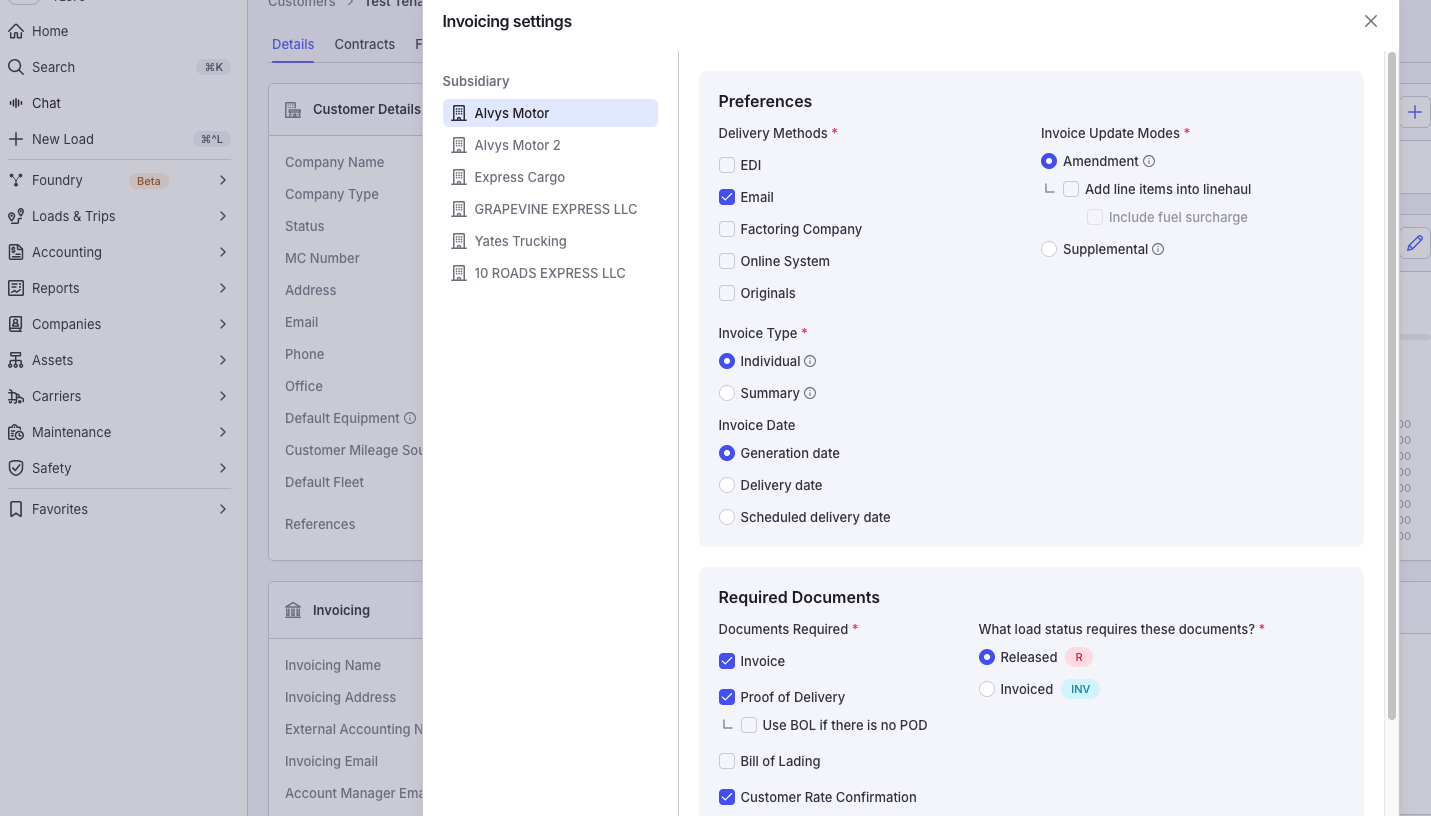
Open the customer profile. On the Details tab, find the Invoicing card and click Manage. Select the subsidiary and set Invoice Date in Preferences.
3
Save
Click Save. The setting applies to invoices you generate from now on.
What to expect
- Once a load has an invoice date, regenerating the invoice keeps it. Voiding the invoice clears it. You can edit the date on the load page.
- A supplemental invoice uses the day you generate it.
- Summary invoices do not change.
- Existing invoices are not changed.
Add line items into linehaul
Some customer contracts require one linehaul amount on the invoice instead of a linehaul plus separate accessorial lines. Turn on Add line items into linehaul for that customer and Alvys shows a single Linehaul line on the invoice PDF that includes the accessorials. The invoice total does not change. Alvys keeps the original linehaul and every accessorial stored separately. Driver and owner-operator pay, margins, and reports still use the full breakdown. This option is set per customer. There is no per-invoice override.Set it up
1
Open the customer's Invoicing settings
Open the customer profile. On the Details tab, find the Invoicing card and click Manage. Select the subsidiary.
2
Use Individual invoices with Amendment
In Preferences, set Invoice Type to Individual and Invoice Update Modes to Amendment.
3
Add line items into linehaul
Under Amendment, check Add line items into linehaul.
4
Choose whether to include fuel surcharge
Include fuel surcharge sits under Add line items into linehaul and is available once that box is checked. Check it to roll fuel surcharge into the Linehaul line too. Leave it unchecked to keep fuel surcharge on its own line.
5
Save
Click Save. The setting applies to invoices you generate from now on.
What you’ll see on the invoice PDF
If a load has accessorials but no linehaul line, Alvys creates a Linehaul line to carry them. A load with no accessorials looks the same as before. The load log notes when an invoice was generated with line items rolled into the linehaul.
What does not change
- Driver and owner-operator pay is still calculated from the original linehaul.
- Reports, margins, and the load page still show every charge individually.
- EDI 210 invoices and accounting (ERP) syncs stay itemized. Only the invoice PDF is consolidated.
- Existing invoices are not reformatted. The setting applies to invoices you generate after you turn it on.
Choose the invoice date
By default Alvys dates an invoice with the day you generate it. If your customer expects the invoice to carry the delivery date instead, change the Invoice Date setting. Three choices are available:
The invoice, the customer invoice PDF, the load, and the accounting (ERP) export all show the same invoice date, and payment terms count the due date from it.
Set it up
1
Set the company-wide default
Go to Management > Company Profile > Invoicing Settings and choose an Invoice Date option.
2
Override it for one customer, if needed
Open the customer profile. On the Details tab, find the Invoicing card and click Manage. Select the subsidiary, then choose an Invoice Date option in Preferences.
3
Save
Click Save. The setting applies to invoices you generate from now on.
Every company stays on Generation date until someone chooses another option, so nothing changes on your invoices until you change this setting.
Limits and behavior
- If the load has no delivery date, Alvys uses the generation date for that invoice.
- Supplemental invoices always use the generation date.
- Summary invoices, invoices generated before you changed the setting, EDI invoices, and driver and carrier pay are not affected.
- Regenerating an invoice keeps the invoice date it already has, so a date you edited by hand stays.
- There is no separate rule for TONU. With Scheduled delivery date, a TONU invoice can carry a date in a later month than the day you generated it.
Show full stop address
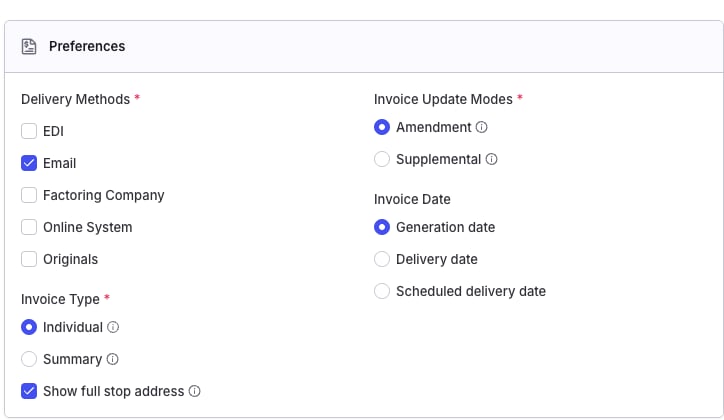
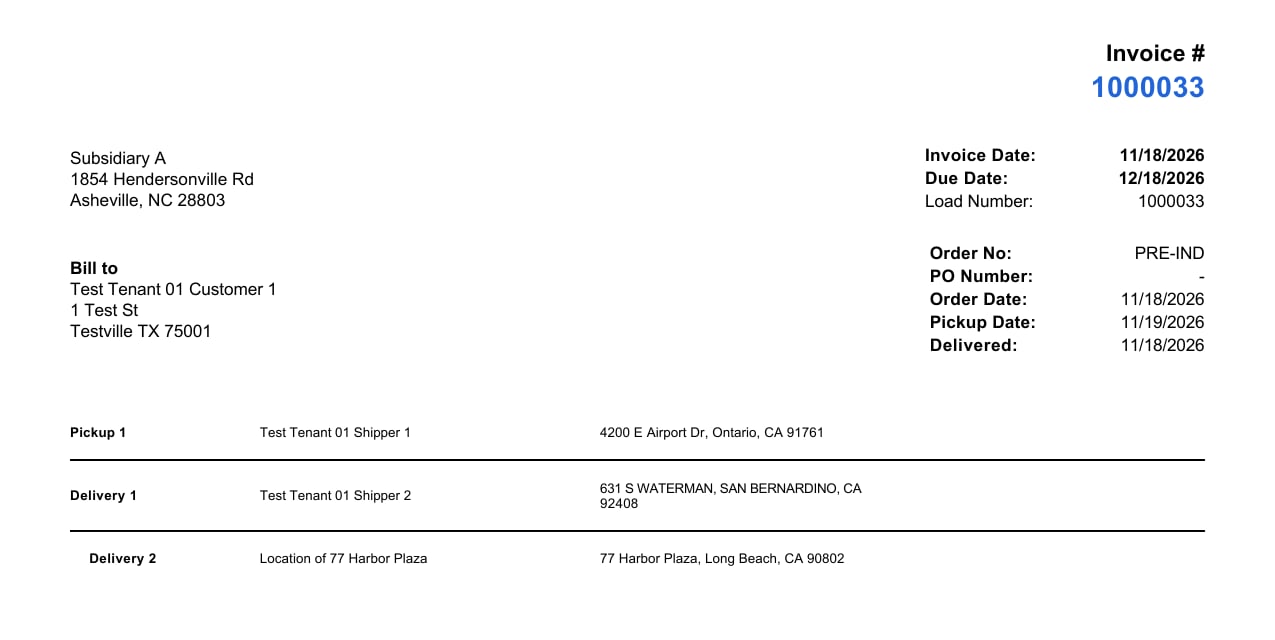
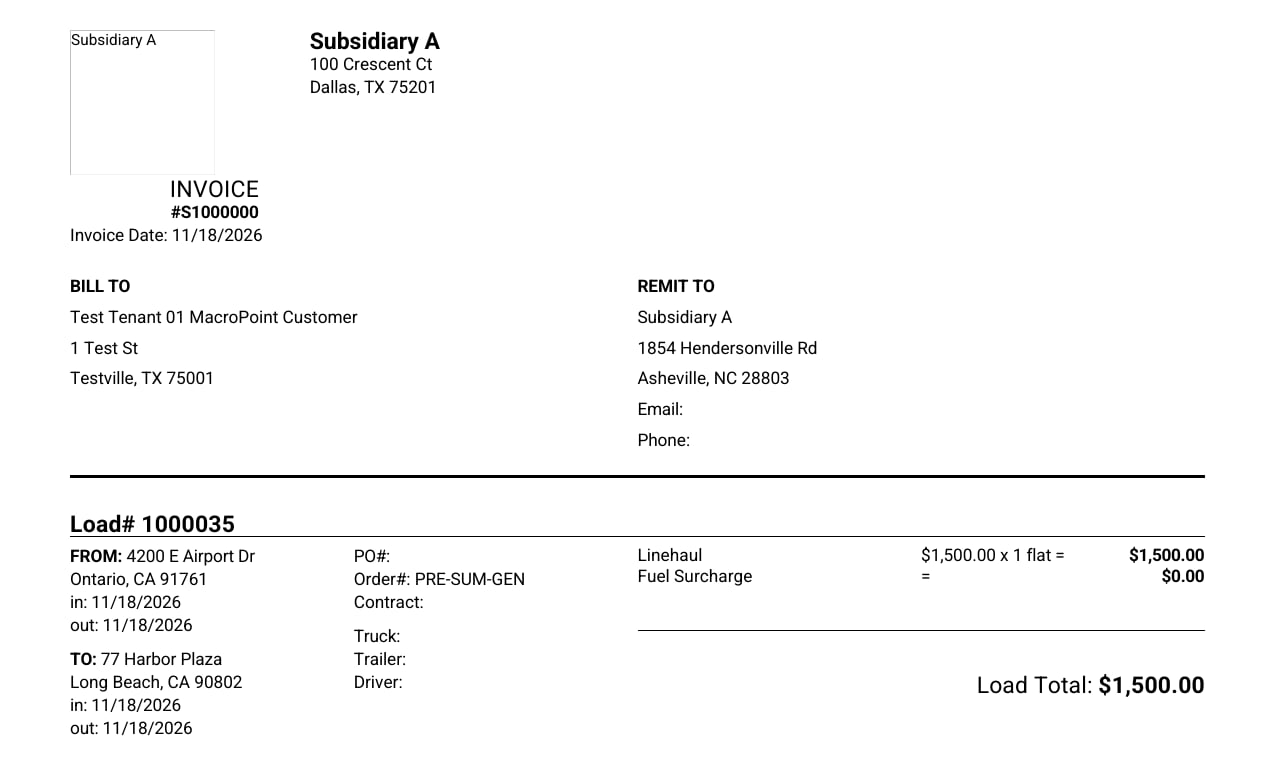
Some customers need the street address of each stop on the invoice to match a charge to a site. Turn on Show full stop address and the invoice PDF shows the street, city, state, and ZIP of each stop, not only the city and state.
The invoice uses the address on the stop, not the main address of the stop’s company. If a company has more than one dock, the invoice shows the dock that the load went to.
Set it up
1
Turn it on for the subsidiary
Go to Settings > Invoicing and select the subsidiary. In Preferences, check Show full stop address. The page saves the change automatically.
2
Turn it on for customers that have their own settings
A customer with its own invoicing settings does not follow the subsidiary setting. Open the customer profile. On the Details tab, find the Invoicing card and click Manage. Select the subsidiary, check Show full stop address in Preferences, and click Save. Do this for each customer that has its own settings.
What you’ll see on the invoice PDF
What to expect
- The setting applies to invoices that you generate after you turn it on. An invoice that already exists does not change until you generate it again.
- If a stop has no address of its own, an individual invoice shows the address of the stop’s company. A summary invoice shows the city and state.
- A preview of a summary invoice draft uses the settings from the day you created the draft. If you turned on the setting after that day, the preview does not show the street. The generated invoice shows it.
- EDI 210 invoices, accounting (ERP) syncs, and the Bill To and Remit To addresses do not change. Only the invoice PDF changes.