Overview
An Alvys Escrow Account (also called a driver reserve or driver holdback) works similarly to a savings account. Its purpose is to reserve a portion of a driver’s or owner-operator’s earnings to cover anticipated costs associated with their trucking operations. Also known as: driver reserve, driver holdback, escrow deposit, escrow withdrawal. Expenses that escrow accounts commonly cover include Insurance, Equipment, Security deposit, General reserves, Tolls, Plates, 2290 fees, and Maintenance. Deposits and withdrawals can be made on a scheduled basis (recurring) or as a one-time deduction from payroll. The system supports scheduling based on a calendar, a set number of occurrences, or other customizable parameters. Escrow accounts support Min Balance and Max Balance values for monitoring. If a balance falls below the minimum, the system alerts you to create a deposit to replenish it. Max Balance is a reference threshold only — reaching it does not automatically stop or reduce scheduled deposits.How it works
Key concepts:- Escrow Account: A named reserve account created for a specific driver or owner-operator. Each account has a defined purpose (such as Insurance or Maintenance), and can have minimum and maximum balance limits.
- Deposit: An amount added to the escrow account, deducted from the driver’s payroll.
- Withdrawal: An amount removed from the escrow account, returned to the driver or applied to a specific expense.
- Split Deduction: A one-time expense that is divided between the driver’s payroll and the escrow account. The user decides how much comes from each source.
- Balance Visibility: Balances are not reflected in the escrow account until a paystub is generated that includes the relevant transaction.
- Escrow account balances are updated only when a paystub is generated that includes the deposit or withdrawal transaction.
- When a one-time escrow deposit or withdrawal is added, two entries appear in the deductions table: one for the initial account balance and one for the deposit or withdrawal.
- Reaching the Max Balance does not stop scheduled deposits. Deposits continue on their schedule once the balance passes Max Balance. To stop collecting into a funded account, edit or remove the recurring escrow deduction on the Deductions tab.
- If the balance falls below the minimum, you will receive an alert to create a new deposit.
- When splitting an expense between payroll and the escrow account, entering the payroll amount calculates the escrow portion automatically (or vice versa).
How to use
Where to find it: navigate to the driver or owner-operator profile.- Open the profile from Assets > Drivers (for company drivers) or Assets > Owner-Operators (for owner-operators).
- Select the Escrow Account tab on the profile to view, create, and manage escrow accounts.
- To create deposits or withdrawals, go to the Deductions tab on the same driver or owner-operator profile.
Settings and permissions
Escrow accounts require the Pay Driver permission. This permission reveals the Escrow Account, Deductions, and Fuels tabs on a driver or owner-operator profile. Without it, those tabs are hidden entirely and the user cannot view or manage escrow accounts. See Billing Permissions for how to grant it. Escrow accounts are supported for both company drivers and owner-operators. For owner-operator payroll, the separate Pay Owner Operator permission controls access to the Owner Operator view within Pay Drivers and Driver Settlements. After creation, only the “Min Balance” and “Max Balance” fields can be edited; all other account fields are set at creation and cannot be changed. To change other fields, delete the account and create a new one. To delete an escrow account, select the bin (trash) icon next to the account in the Escrow Account tab.📋 This image shows a driver profile with the Escrow Account tab selected and the Add Escrow Account button visible.
📋 This image shows the Add Escrow Account pop-up form with fields filled in and the Save button.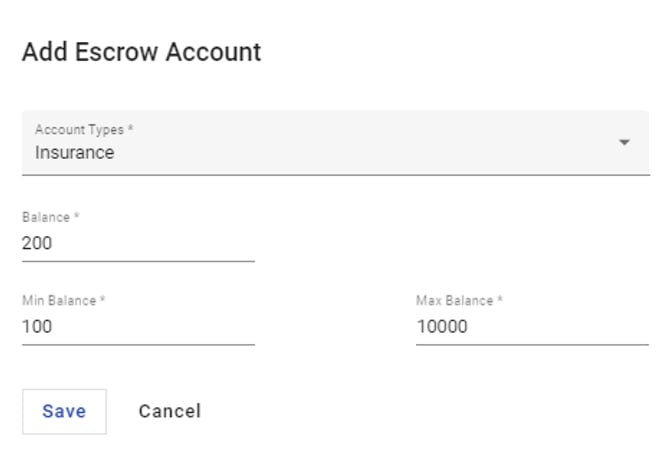
📋 This image shows the escrow account list with the pen (edit) and bin (delete) icons visible next to an account.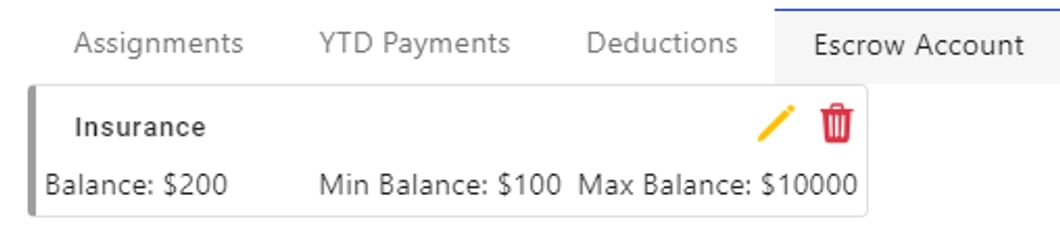
📋 This image shows the Deductions tab on a driver profile with the Add Deduction button clicked.
📋 This image shows the transaction type dropdown open with Escrow Deposit and Escrow Withdrawal options visible.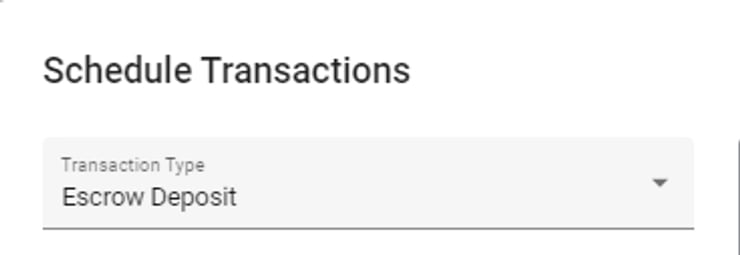
📋 This image shows the escrow account selector dropdown showing existing escrow accounts to choose from.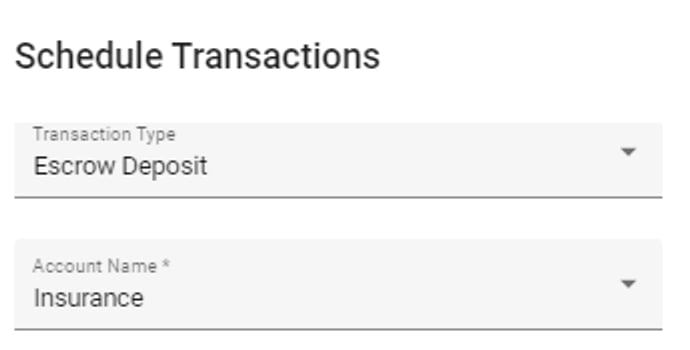
📋 This image shows the amount field and frequency set to Once with a start date entered.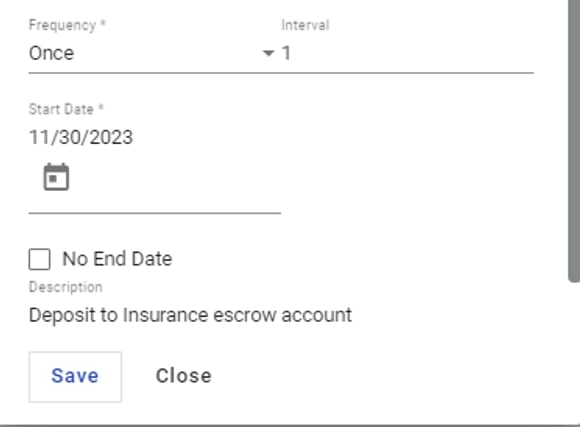
📋 This image shows the deductions table after saving a one-time transaction, displaying two entries, one for the initial balance and one for the deposit or withdrawal.
📋 This image shows the transactions history table under the Escrow Account tab after a transaction has been recorded.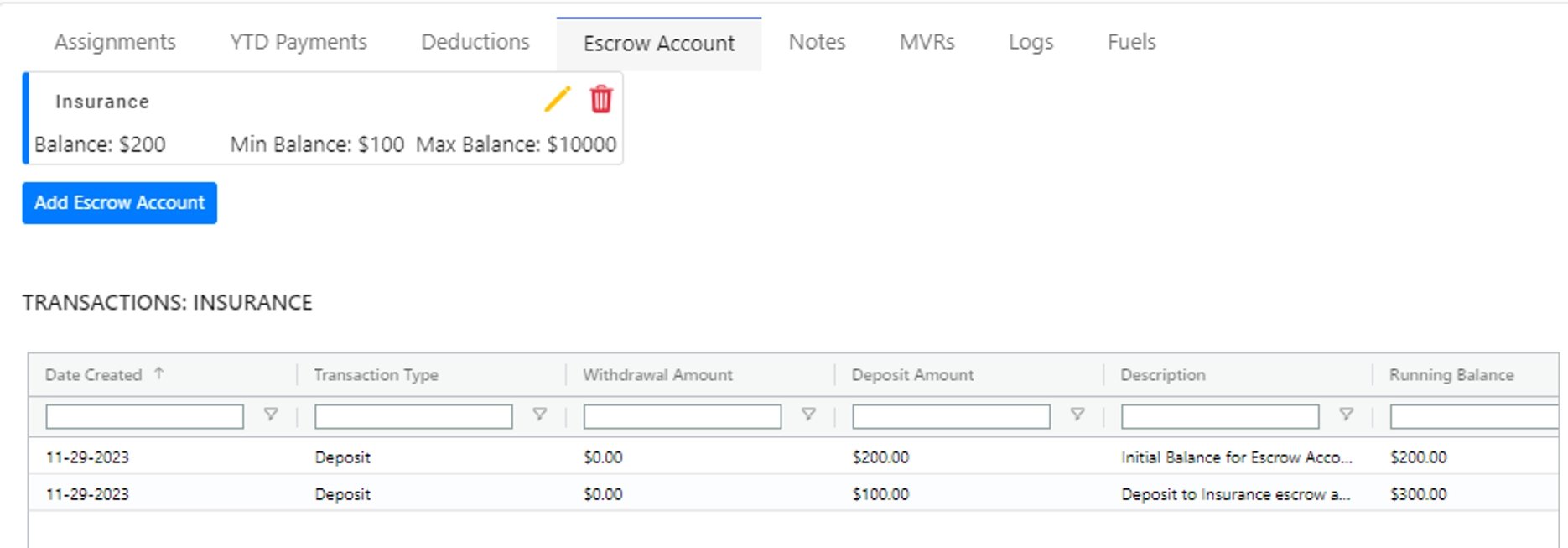
📋 This image shows the Driver Settlements page with a driver selected and the Deductions/Reimbursement section scrolled into view. Source: