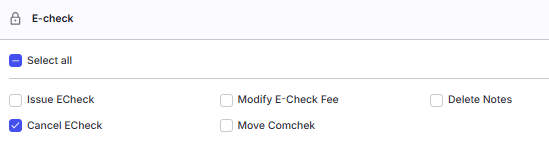
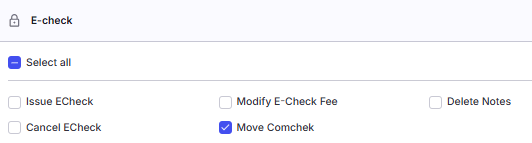
E-Check permissions control which users can issue, cancel, move, and modify e-checks (also called comchecks or Comcheks). Five individual permissions govern these actions; each is set per user in the Users tab of Company Profile.
Overview
E-check functionality in Alvys is gated by five separate permissions. Each permission controls a distinct action. Users without the correct permission will not see the corresponding button or option. Permissions are assigned at the user level in Management > Company Profile > Users. E-checks are also called comchecks, Comcheks, money codes, or electronic checks.Where to Find It
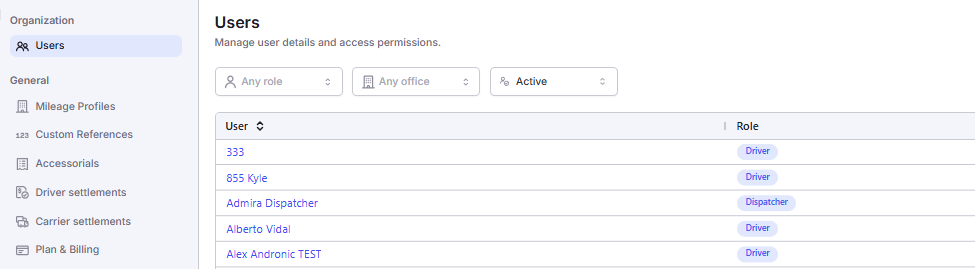
Navigate to Management > Company Profile, then open the Users tab. Locate the user whose permissions you want to update and click to open their profile. Scroll to the Permissions section to view and toggle the e-check permissions.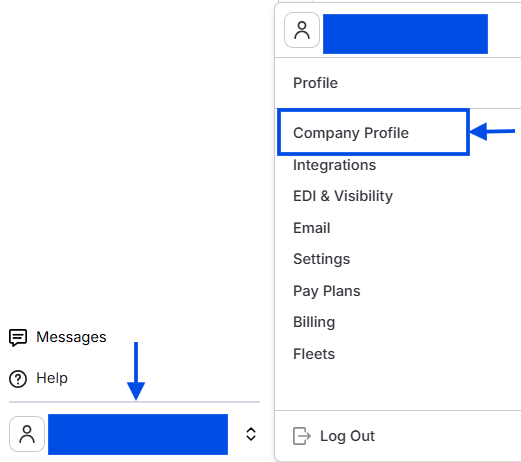
-
Screenshot of the Company Profile Users tab*

Key Concepts
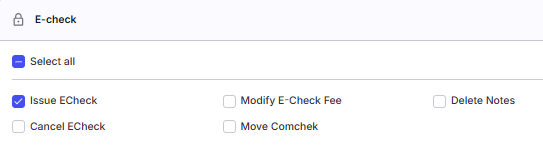
“Issue ECheck”: Allows the user to issue a new e-check from a load. Without this permission, the Manage E-Check button is not visible on the load. This permission is required before any other e-check action is available.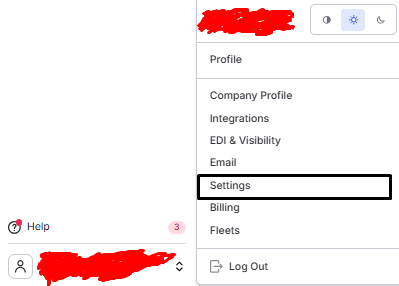
- Issue ECheck permission toggle*