Overview
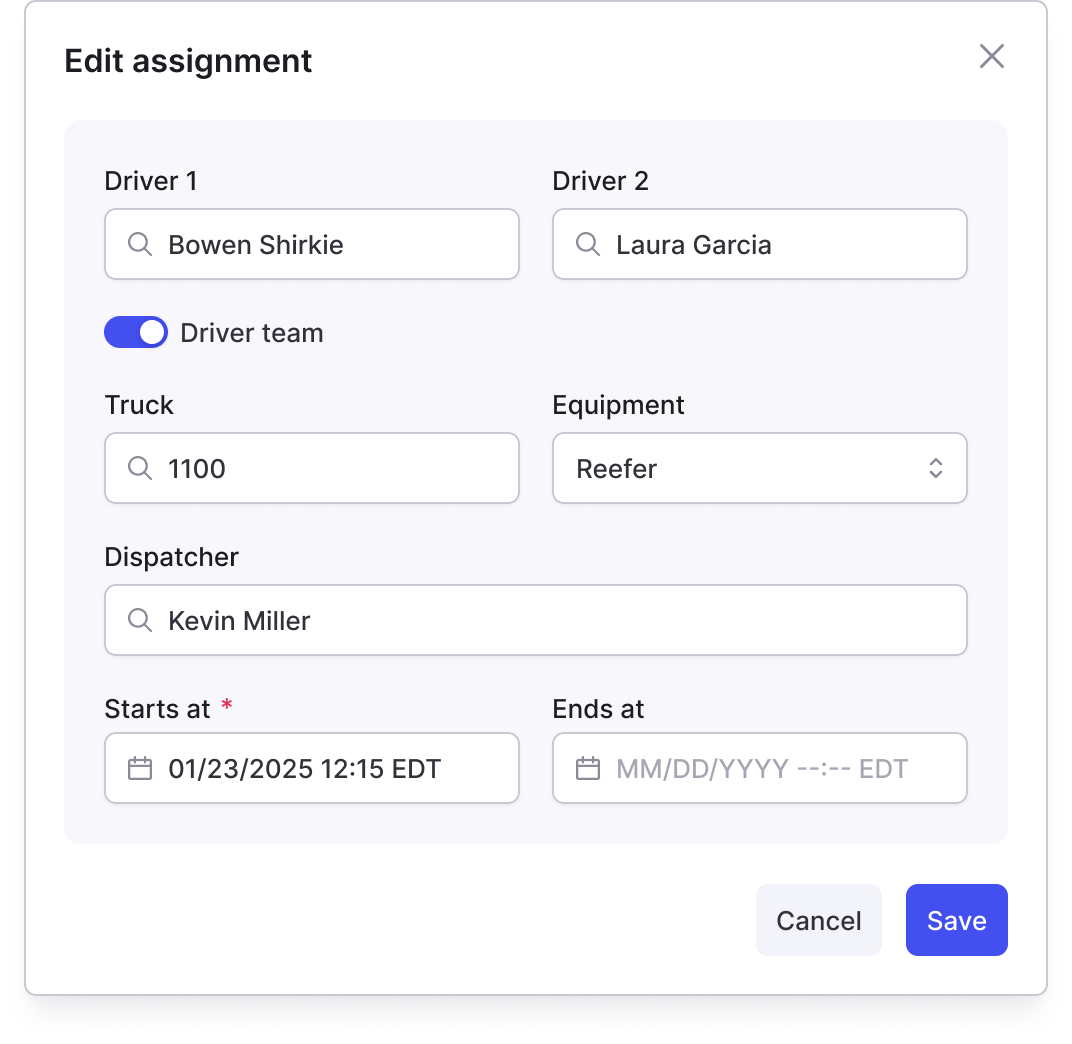
Assignment Preferences, also called dispatch preferences or driver-truck pairings, let you link a driver (or a driver team) to a specific truck and a dispatcher ahead of time. When a load needs to be assigned, Alvys checks these pairings and can suggest or automatically apply the right combination, saving dispatchers from re-entering the same information on every trip. Each preference has a status: it is Planned before its start time, Active during the window you set, and Archived after it ends or when you manually archive it.Prerequisites
- You must have the “ViewDrivers” and “ViewTrucks” permissions to access the Assignment Preferences page. These permissions are required for the page to appear in the left navigation.
- You must have at least one driver and one truck already created in Alvys before you can set up a preference.
- If you need to add drivers or trucks first, do that in Assets > Drivers and Assets > Trucks before returning here.
Steps
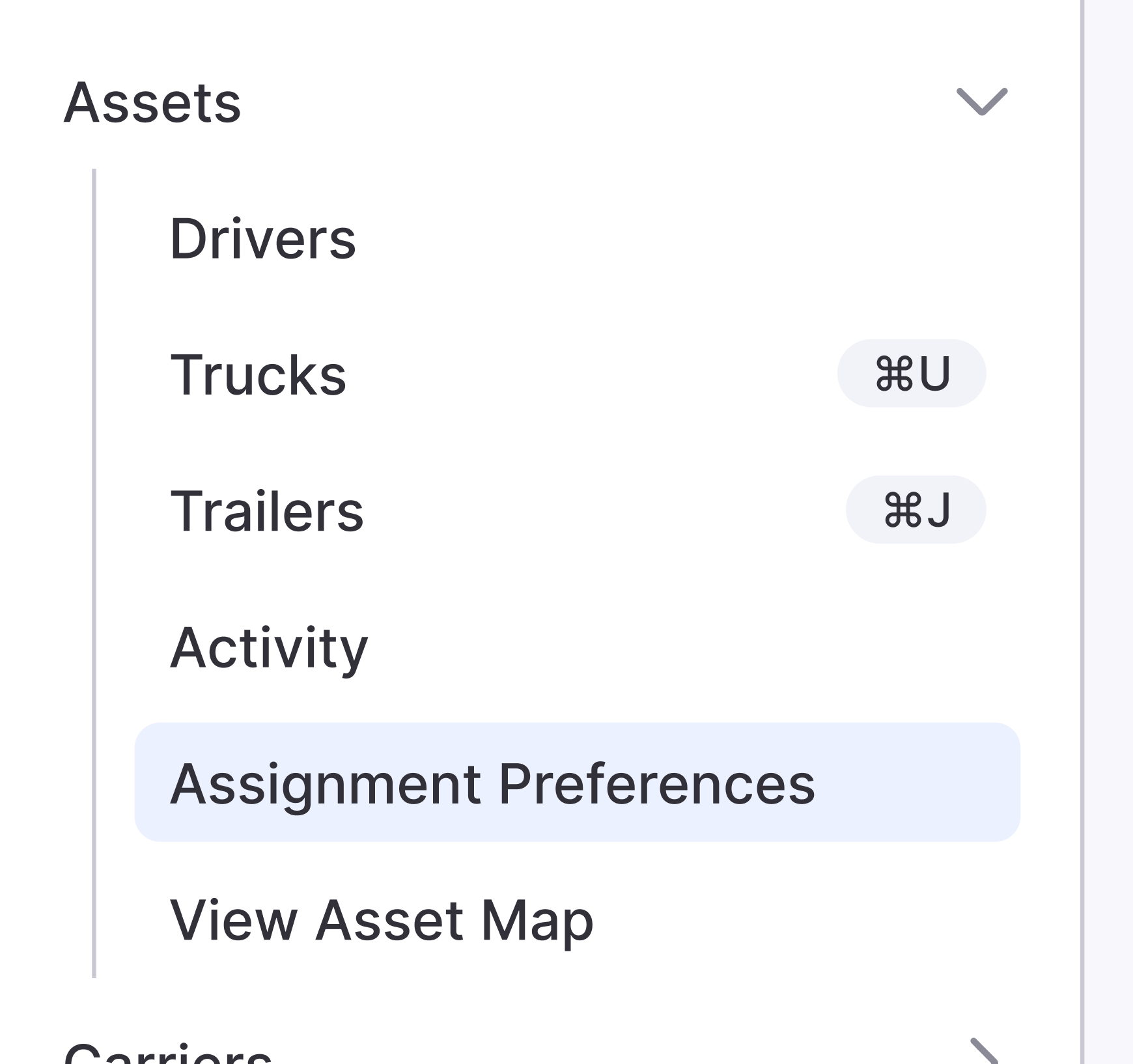
- Open Assignment Preferences.
- Open the new assignment form.
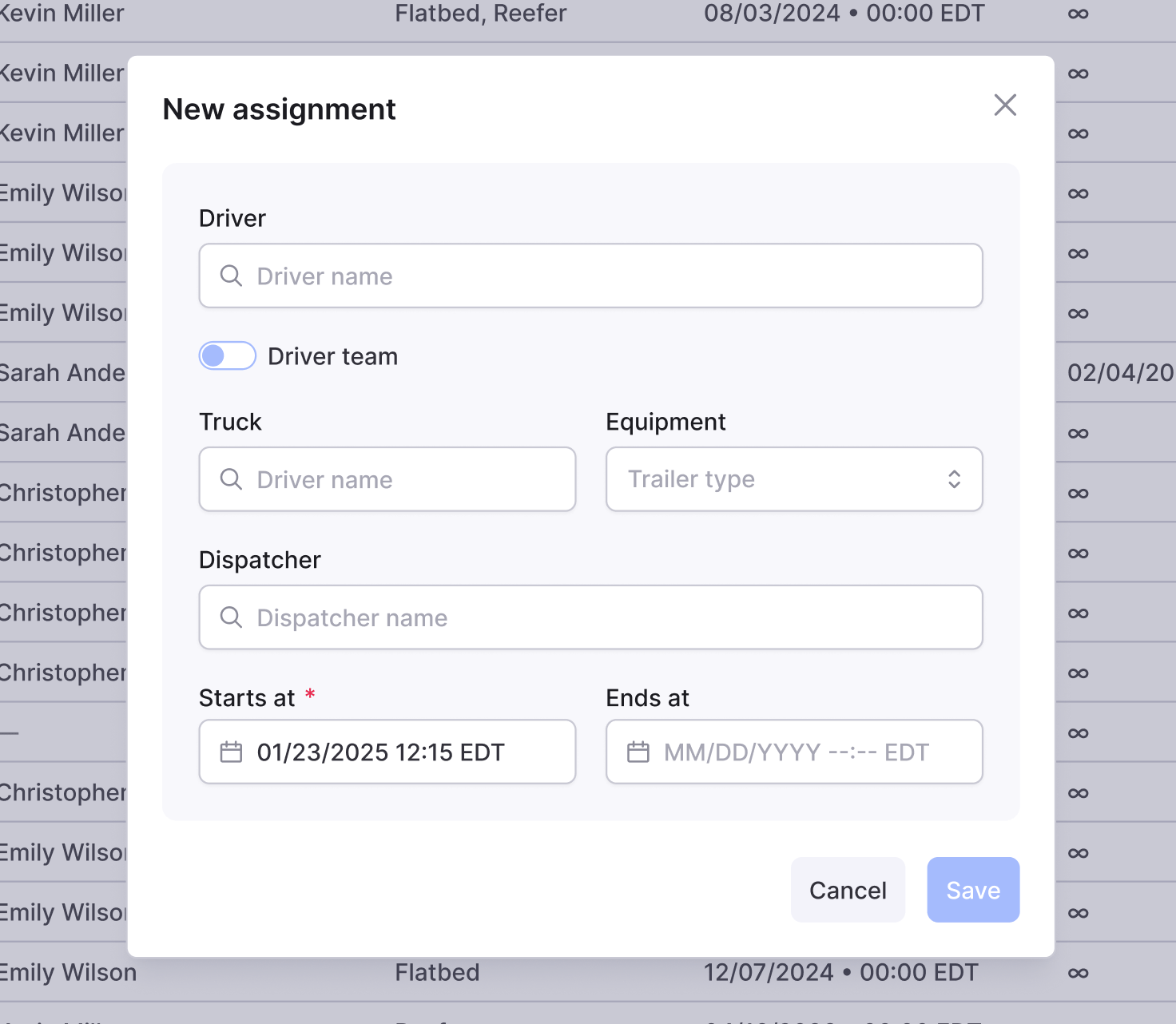
- Fill in the preference details.
- In the Primary Driver field, type the driver’s name and select them from the results.
- If this is a team assignment, toggle on Driver team and then fill in the Secondary Driver field.
- In the Truck field, type the truck number and select it from the results.
- Optionally, select one or more values in the Equipment field to record the trailer equipment type for this pairing.
- In the Dispatcher field, type a name to associate a dispatcher with this preference.
- Set a Starts at date and time for when this preference becomes active.
- Optionally, set an Ends at date and time. If left blank, the preference remains active until you archive it manually.
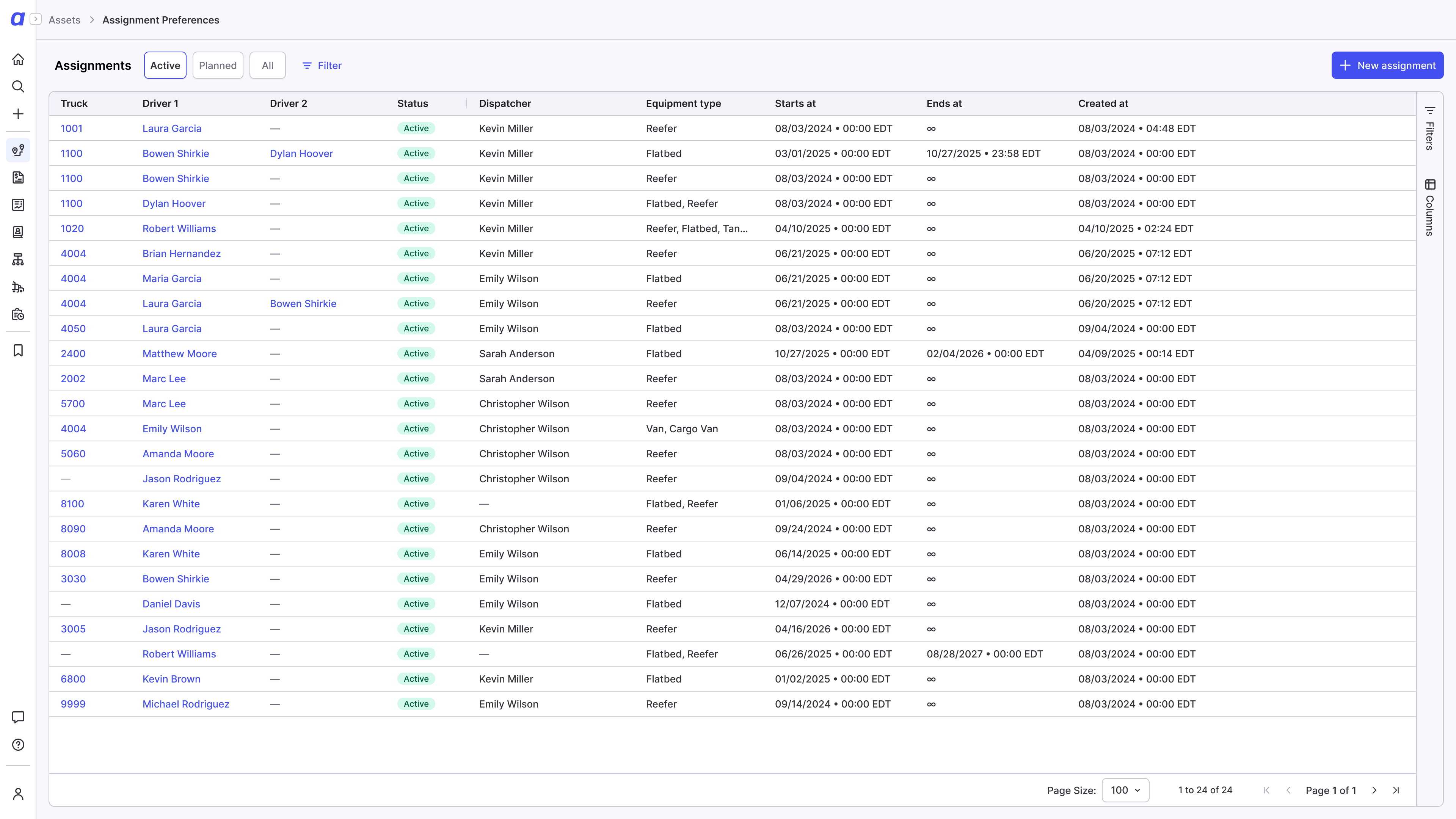
- Save the preference.