
Overview
This article covers the updated user management and sign-in experience in Alvys, including how administrators create and manage users (also called accounts, logins, or team members), the new sign-in flow, the one-time Terms and Conditions agreement, the forgot-password flow, and how multi-tenant users switch between organizations. What applies to whom:- All Alvys users experience the new sign-in flow (login, password reset, organization selection) and the one-time Terms and Conditions agreement.
- Admin, Partner Admin, and Support roles use the user creation and management flows.
- Alvys Implementation and Support are involved in initial tenant creation.
Prerequisites
- To create or manage users, you must have the “Add User” permission and an Admin, Partner Admin, or Support role. The “Set Permission” permission lets you configure which permissions each user receives.
- To sign in, reset a password, or switch organizations, no special permission is required; these flows apply to all users.
- Administrators can send a password reset from Settings → Organization → Users — Alvys emails the user a secure link to set a new password. Users can also self-service using Forgot Password on the sign-in page.
Steps
Creating a new user
- Log in to Alvys at app.alvys.com.
- Navigate to Settings → Organization → Users.
- Click the Add User button.
- Enter the user’s Name.
- Enter their Email address (this is also their username).
- Enter the user’s Phone Number (optional).
- A randomized password is automatically generated for the new user.
- Choose the user’s Role.
- Select their associated Office.
- Review and configure any other settings, such as e-check settings or permissions for the user.
- Scroll down to the bottom of the page and click Add User.
- The new user receives an email notification (ask them to check the spam folder if it is not immediately visible).
- The email contains a link to the sign-in page so they can log in with their username (email) and the temporary password.
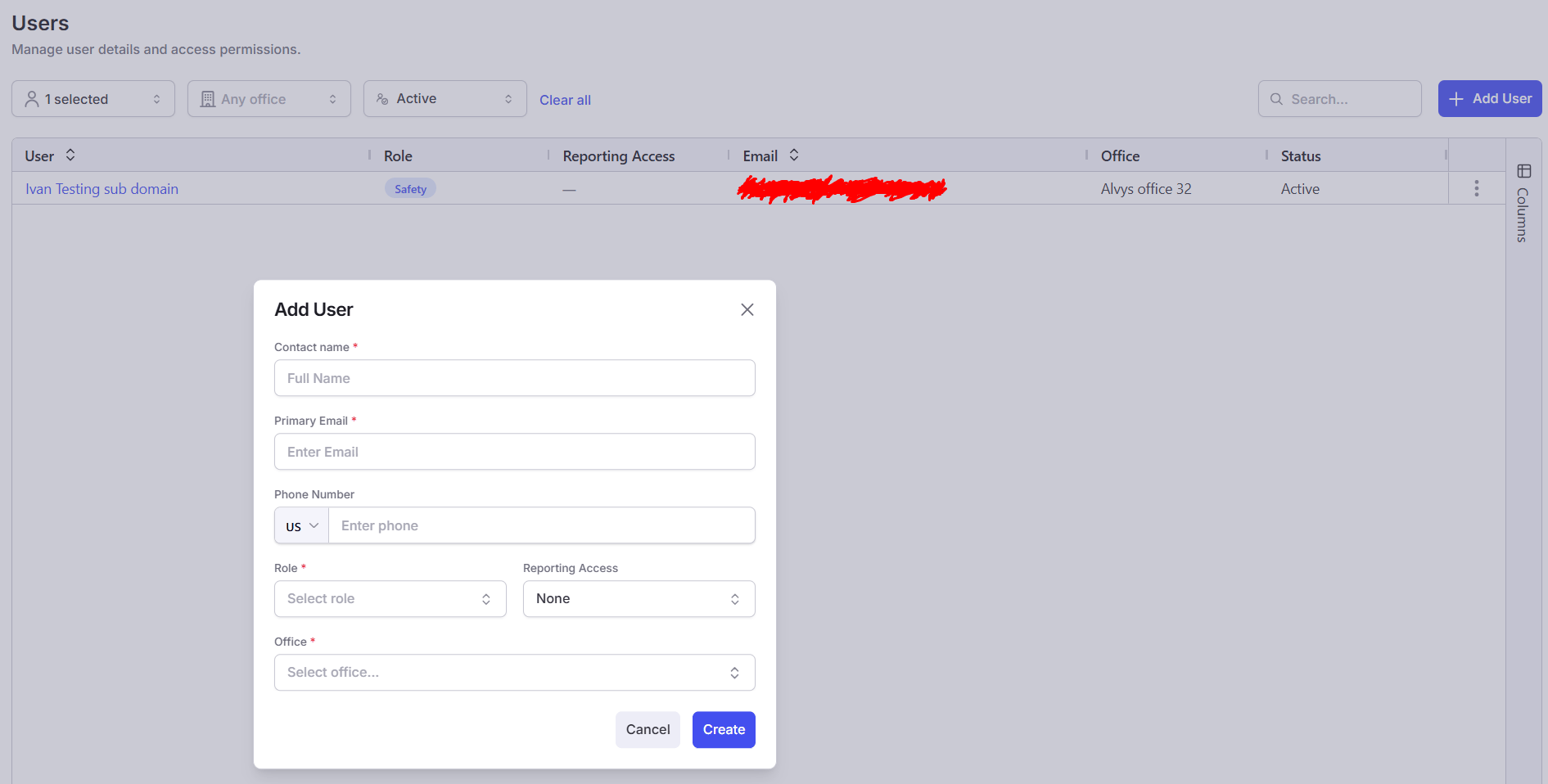
User list and new user button with a pop-up window
Managing user profiles
Administrators can edit user details and send a password reset from a user’s profile.- Navigate to Settings → Organization → Users.
- Open the user profile. Double-click any row in the users list to open that user’s profile for editing.
- Update phone number (optional). Click the “Phone” field to type in a phone number, then click save.
- Update primary email / username:
- Click the “Primary Email / Username” field.
- Type in the new email address.
- Click Save to apply the change, or Cancel to discard.
- Send a password reset if needed. From the user’s profile, use the Reset Password option — Alvys emails the user a secure link to set a new password. Alternatively, the user can self-service using Forgot Password on the sign-in page.
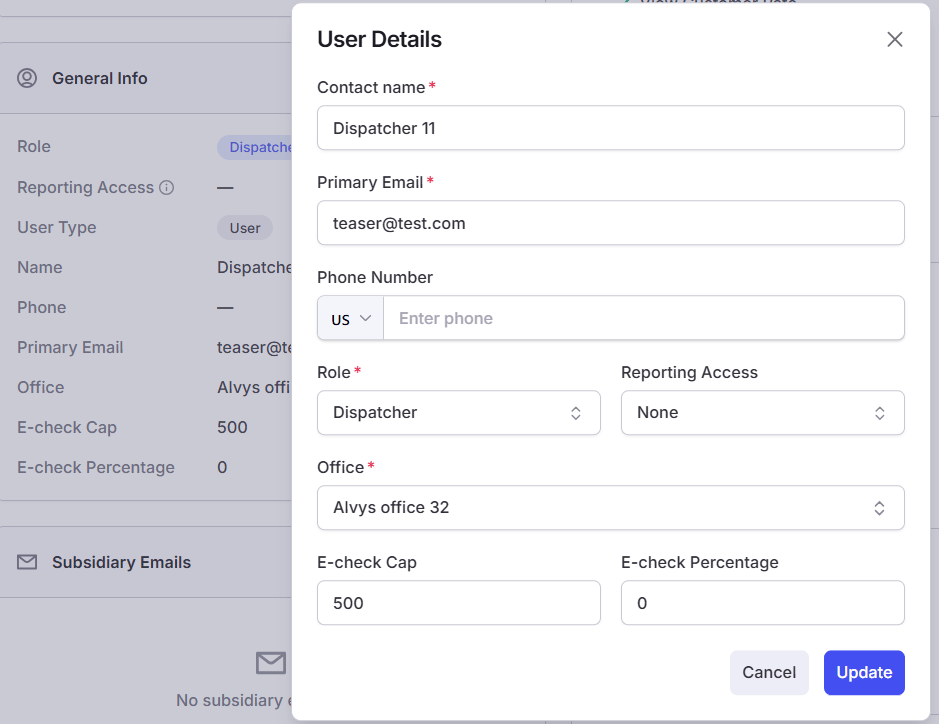
User profile and editing options available
The new sign-in experience
- Access the sign-in page. Navigate to the Alvys login page at app.alvys.com.
- Enter credentials:
- Enter your Username (your email address).
- Enter your Password (the temporary one for new users, or your established one).
- Log in. Click Log In.
- Select organization (if applicable). If you are associated with more than one organization or tenant, you are directed to a Select Organization screen.
- Note: there is currently no search box on this Select Organization page. Scroll through the list to find your desired tenant.
- Access the home screen. Select the tenant you wish to work in.
- You are logged in and taken directly to the Alvys home screen.
👋 Alvys updated its Terms of Service and Privacy Policy as of July 11, 2025. Users are now required to agree to the Terms and Conditions when logging in.
- One-time prompt for users to accept Terms and Conditions.
- No impact to existing workflows or functionality.
Forgot password flow
If you forget your password, you can reset it yourself.- Access the sign-in page. Go to the Alvys login page.
- Click Forgot password.
- Enter your username (your email address).
- Click Continue.
- Instructions to reset your password are sent to your email address.
- Click the URL in the email to complete the password change process.
Switching organizations (multi-tenant users)
For users with access to multiple organizations or tenants, you can switch between them without logging out and back in.- Locate the tenant selector. From any page in Alvys, go to the upper left corner of the screen. You will see the currently active tenant’s name and ID.
- Open the tenant list. Click the small up and down arrows next to the tenant name. This reveals a list of all organizations you have access to.
- Search for the tenant. A search box is available at the top of this list. Type the name of the tenant you wish to switch to.
- Switch tenant. Select the desired tenant from the filtered list.
- Alvys switches you to that tenant’s context without requiring a full logout and login.