
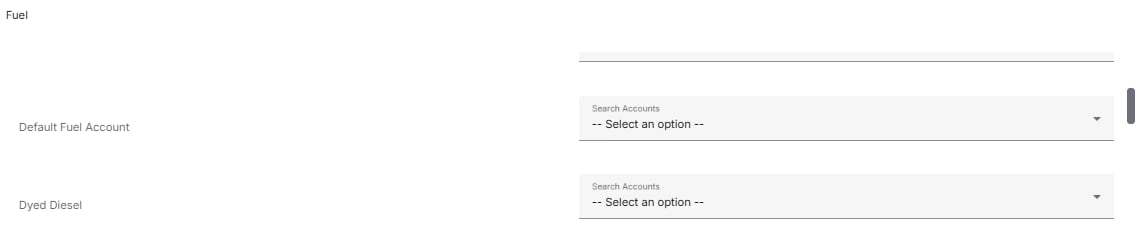
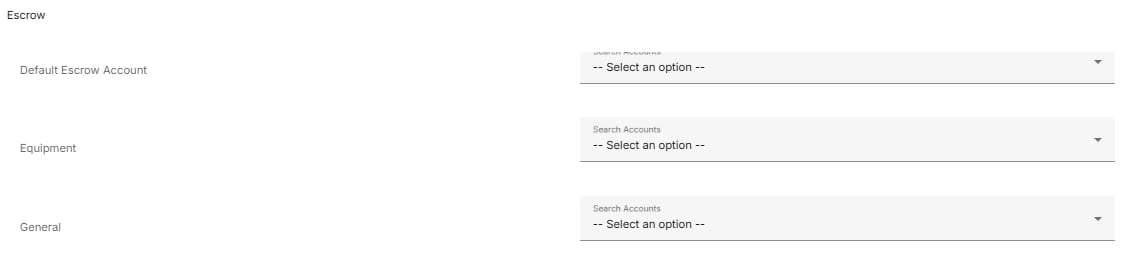
Account mappings connect Alvys transaction line items to specific accounts in your QuickBooks Online Chart of Accounts. This article explains how to configure both default fallback accounts and specific mappings for loads, trips, accessorials, e-checks, deductions, fuel, tolls, and escrow liability.
Overview
Account mappings (also called account assignments) tell Alvys which QBO account to post each type of transaction line item to when exporting. Each mapping has two levels: a default account that applies when no specific mapping is configured, and specific mappings that override the default for particular load types, trip types, accessorials, or other line items. If a line item does not have a specific mapping, Alvys falls back to the default account for that category. If neither a specific nor a default mapping exists, the export will fail for that transaction.Before You Start
Before configuring account mappings:- Confirm the QuickBooks Online integration is connected. If not, complete How to Connect and Configure QuickBooks Online in Alvys first.
- Confirm your QBO Chart of Accounts includes all accounts you intend to map to. Alvys displays the accounts available in your connected QBO file; if an account is missing, add it in QBO first and then return to this page.
- You need the “CompanyProfileManager” permission to configure account mappings. This permission is available to users with the Admin, Support, or Partner Admin role.
Steps
Open the integrations settings. Navigate to Management > Integrations and open the QuickBooks Online settings. Locate the Account Mappings section. Scroll to the Account Mappings section within the QBO settings page.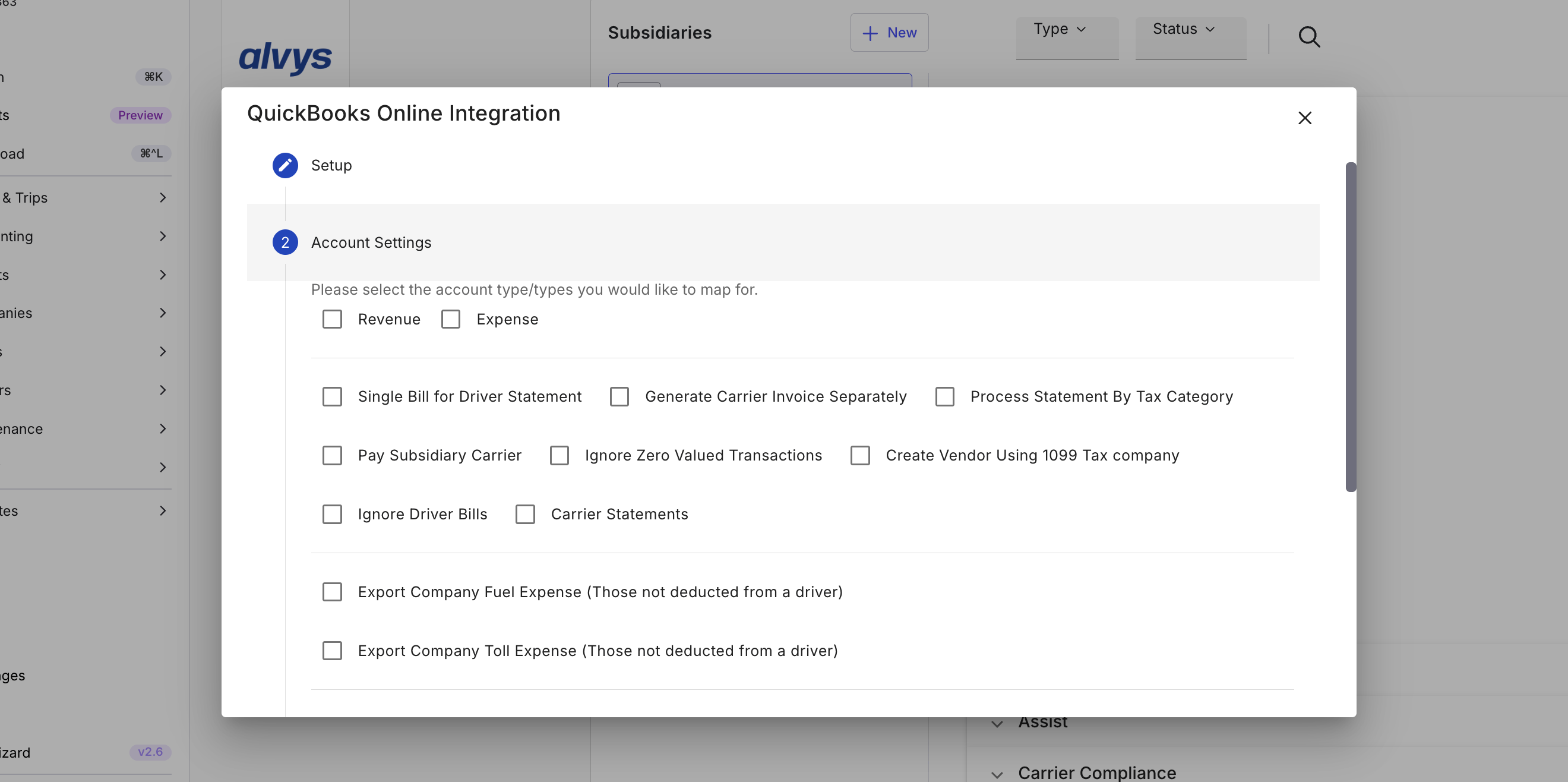
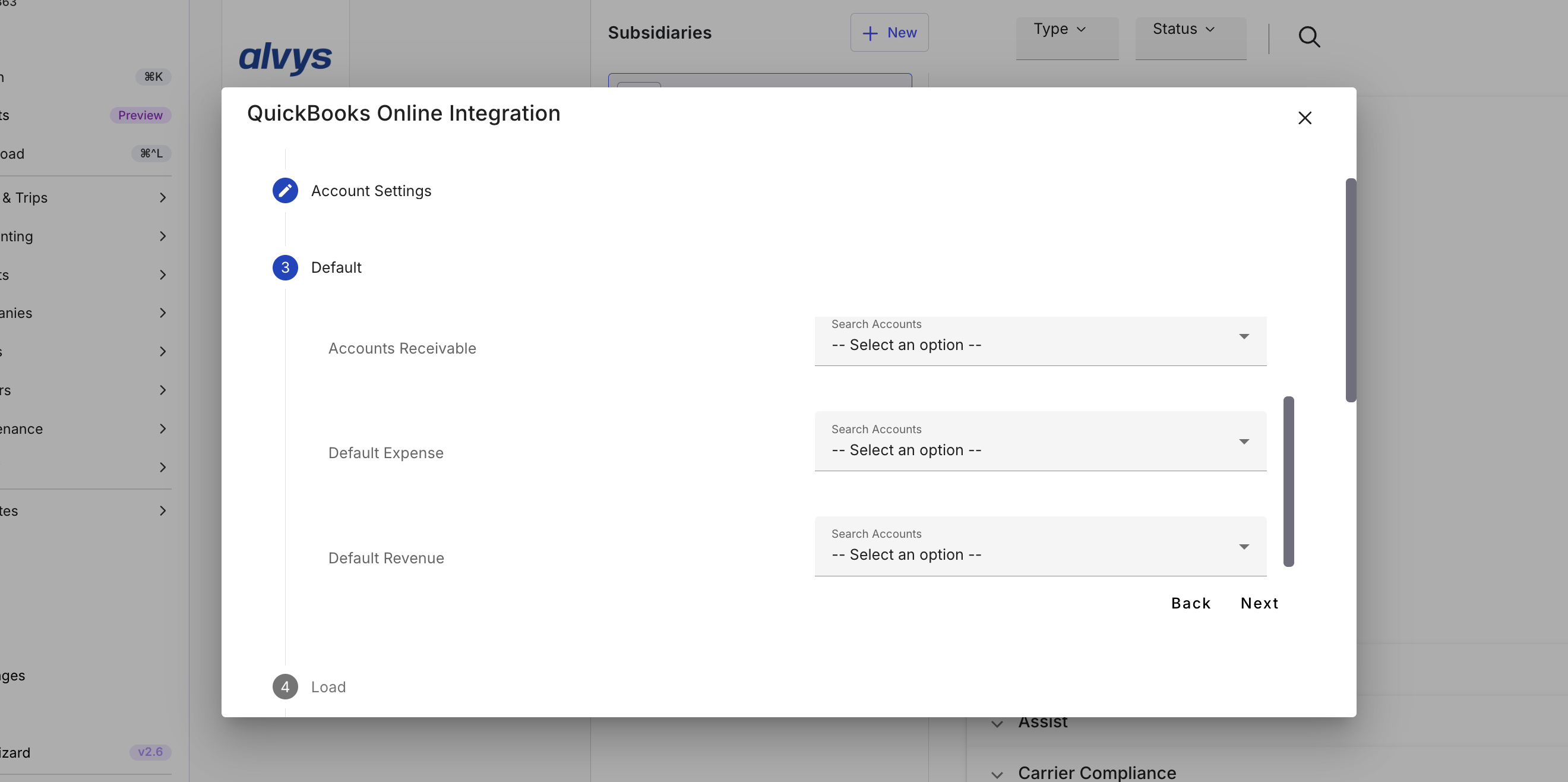
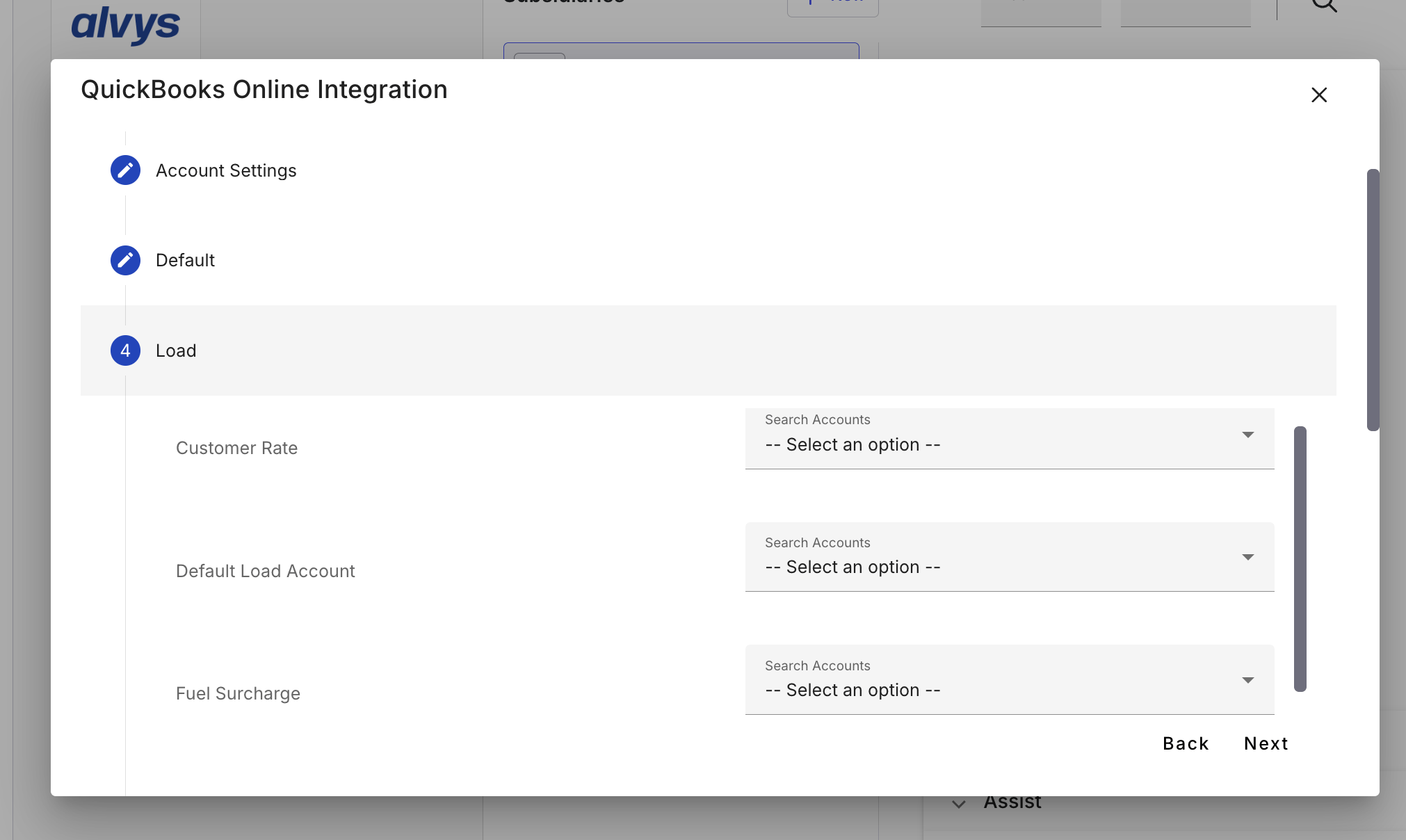

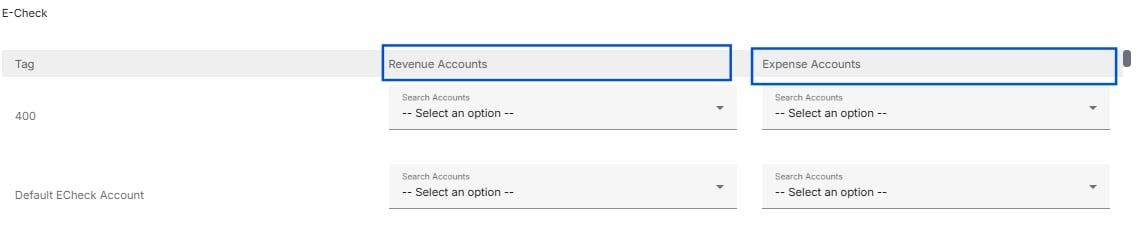

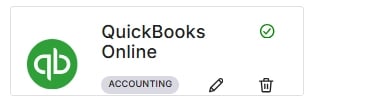
- Screenshot showing the green checkmark confirmation state after Account Mappings are saved successfully in Alvys.*