
When you try to save an arrival or departure time on a stop and see an error, Alvys is enforcing one of two rules: the arrival time must not be later than the departure time, and neither time can be set in the future. Also known as: stop time error, arrival time won’t save, departure time won’t save, stop time validation.
Symptom
When saving arrived or departed times on a stop, one or more of the following error messages appears and the save is blocked:- “Arrival/Departure: Arrival must be before departure.”
- “Arrival should not be in future.”
- “Departure should not be in future.”
- “Concurrency Conflict. It looks like you’re making changes a bit too quickly.”
🖼️ Set Arrival/Departure Times modal showing the departure-before-arrival validation error.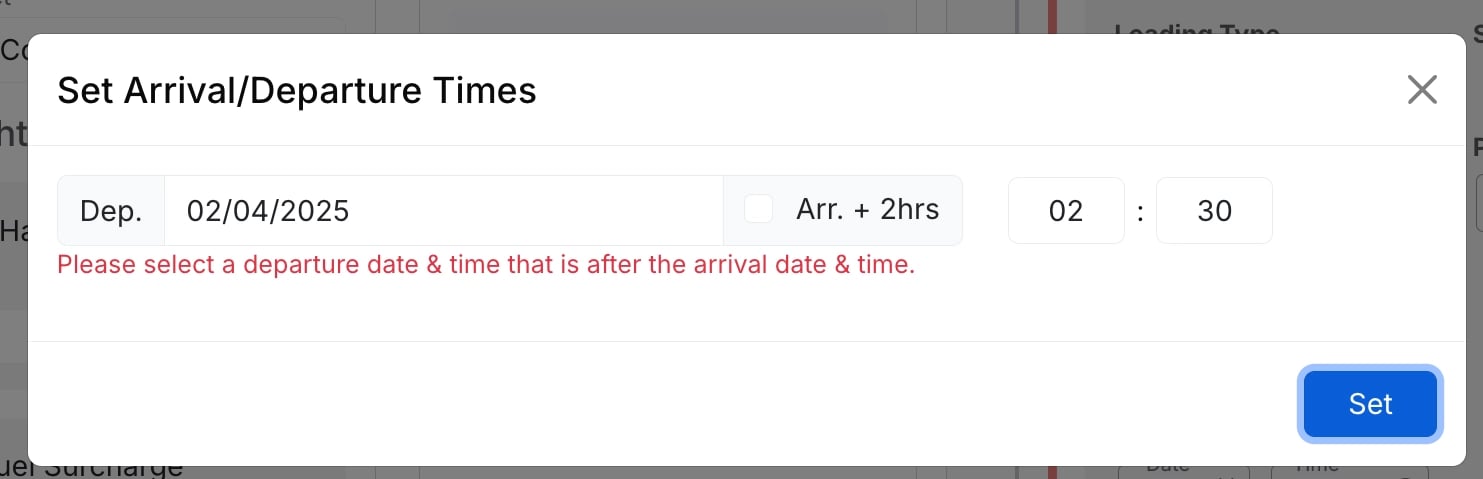
🖼️ Set Arrival/Departure Times modal showing the arrival-in-future validation error.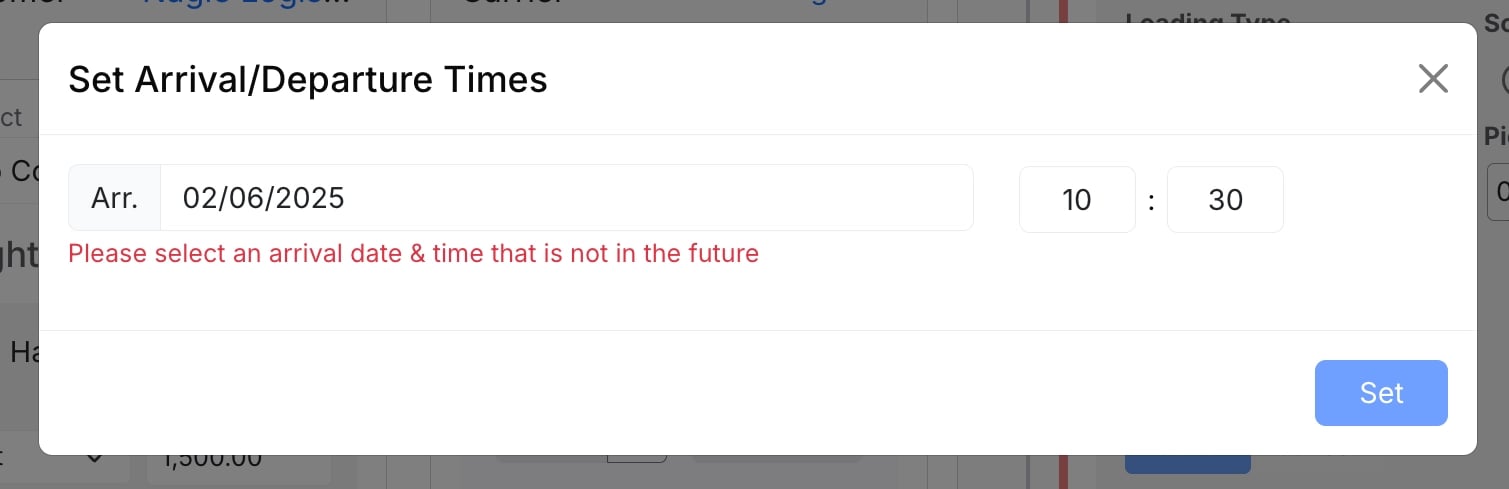
Cause
These errors occur because the system enforces two rules when recording actual arrived and departed times: Rule 1: Arrival must be before or equal to departure. A stop cannot show a departed time that is earlier than the arrived time. This prevents data entry errors where a driver appears to have left before arriving. Rule 2: Neither arrived nor departed time can be in the future. The system checks the entered time against the current real-world time in the stop’s time zone. Times that have not yet occurred cannot be recorded as actual arrived or departed times. These validations protect data accuracy and prevent errors in connected integrations such as EDI and visibility platforms.Resolution
Error: “Arrival/Departure: Arrival must be before departure.”
- Review the Arrived time and the Departed time currently entered on the stop.
- Confirm which value is incorrect. The arrival time must be earlier than or equal to the departure time.
- Correct the Arrived time, the Departed time, or both so that arrival comes before departure.
- Save the stop. The error will clear when the values are in the correct sequence.
Error: “Arrival should not be in future.”
- Check the Arrived time you entered and compare it to the current date and time in the stop’s time zone.
- The entered time is later than the current moment. Enter a time that has already occurred.
- Save the stop.
Error: “Departure should not be in future.”
- Check the Departed time you entered and compare it to the current date and time in the stop’s time zone.
- The entered time is later than the current moment. Enter a time that has already occurred.
- Save the stop.
Error: “Concurrency Conflict. It looks like you’re making changes a bit too quickly.”
This error means Alvys received two competing saves for the same load. Saving the same stop twice in quick succession no longer causes it: the save control is unavailable while a save is in progress, and it becomes available again if the save does not succeed, so one click cannot be submitted twice. If you still see this error, another save for the same load was in progress at the same time:- Confirm whether a colleague is working on the same load, or whether you have the load open in a second browser tab. Two saves on one load at the same time return this error by design.
- Close the duplicate tab, or agree with your colleague who makes the change.
- Reload the load to pick up the saved values, then enter your change again and save once.
This error can also appear when a stop status is changed several times in quick succession, when a driver or carrier is changed at the same time as another edit, or when a load is cancelled while another save is running. In those cases, wait for the page to finish updating before you make the next change.
If That Didn’t Work
If the error persists after correcting the times, check the following:- Confirm the stop’s time zone is set correctly. The system evaluates future-time violations based on the stop’s assigned time zone. If the time zone is wrong, a valid time may still appear as a future time.
- Confirm you are not mixing 12-hour and 24-hour formats. An AM/PM entry error can cause the arrival to appear later than intended.
FAQs
Q: Can I record a departure time without first recording an arrival? A: No. A departure time requires an arrival time to be on record for the same stop. Enter the arrival time first, then record the departure. Q: Why does Alvys validate against the stop’s time zone instead of my device’s time? A: Stop times reflect when an event occurred at the stop location. Using the stop’s time zone ensures accurate records and correct data for integrations such as EDI. Q: Who can record arrival and departure times on a stop? A: Users with the “Dispatch” permission can record arrival and departure times. If you do not see these fields on a stop, contact your account administrator to confirm your permissions.Related
- Stop Dates and Times: Learn how arrived and departed fields are shown based on stop status, and how schedule types (FCFS and APPT) work.