
Alvys address fields support Google autocomplete, manual entry, an optional Address Line 2 field, and coordinate-based map pinning. These options appear consistently across load stops, company profiles, and other address forms to ensure accurate location data for routing, mileage, and invoicing.
Overview
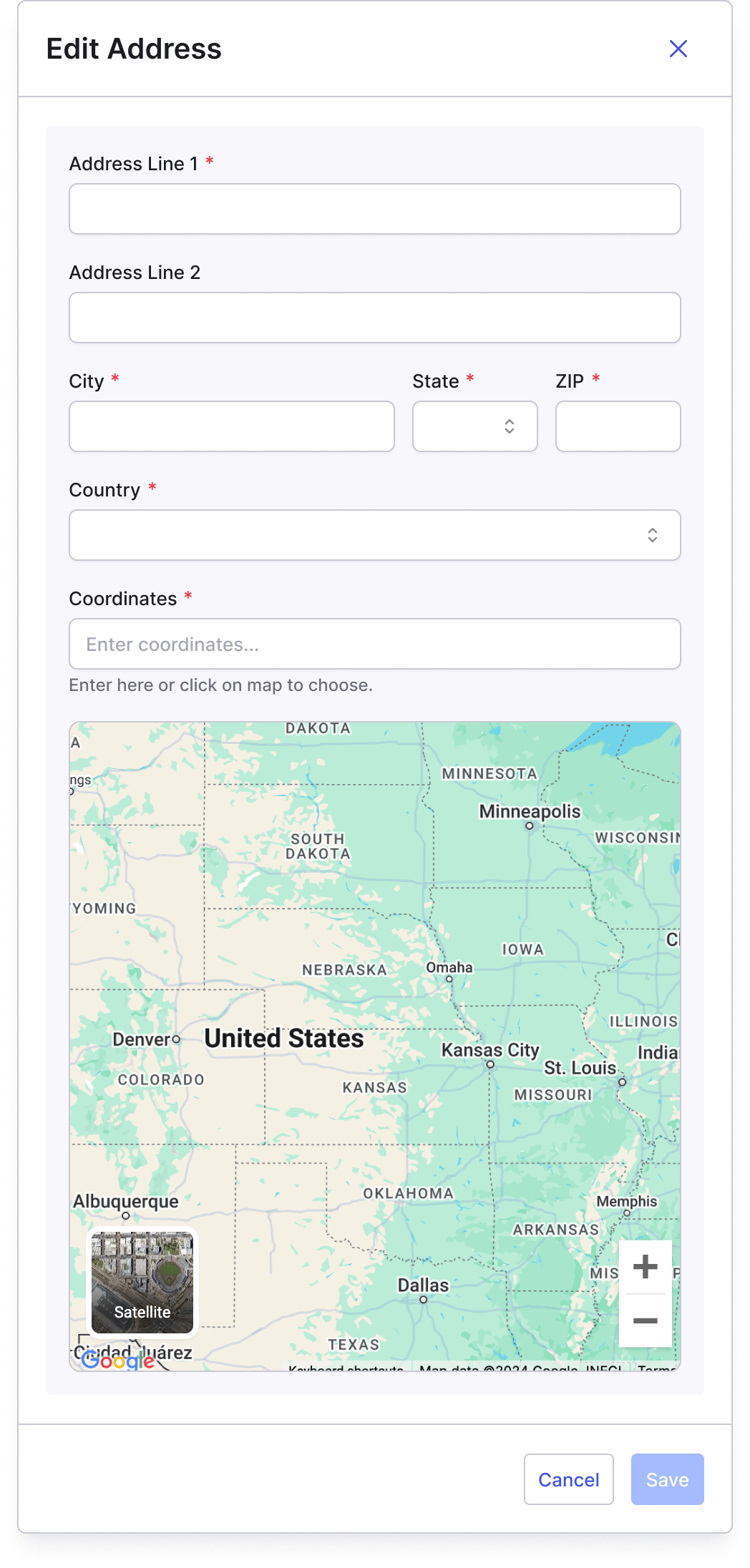
Accurate addresses are essential for driver routing, mileage calculations, and document generation. Alvys address input fields offer multiple entry methods so you can capture precise locations even when Google autocomplete does not have a result.
- Google autocomplete: The primary method. Start typing in the Address Line 1 field and select from the suggestions list. City, State, ZIP, and Country fill in automatically.
- Manual entry: When autocomplete does not return a match, type each field directly. All fields including Country are required for a valid address.
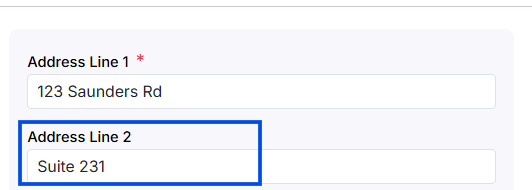
- Address Line 2: An optional field for suite numbers, apartment numbers, dock numbers, or other location details.
- Map Pinning for Coordinates: When accurate coordinates are necessary, you can drop a pin on the map to specify the location manually.
Where to Find It
Address input fields appear in the following locations: Loads and Trips- Load creation form: the stop panels for each pickup and delivery
- Load Details Page: the Stops section when adding or editing a stop (Add Stop, Split Trip)
- Load Details Page: the Tenders section, External tab, carrier details panel
- Companies → Locations: create or edit a Shipper/Consignee, Cold Warehouse, Dry Warehouse, or Terminal (Coordinates section with lat/lng and map)
- Company profile: Physical Address section (including the coordinates editor on location and Lease profiles)
- Company profile: Invoicing address section
- Driver Profile: Physical Address and Company Address fields
- Trucks: New Truck form, Asset Leased From and Asset Leased To fields
- Subsidiary General Info: Physical Address and Remit Address fields
Key Concepts
Google Autocomplete
Google autocomplete is the default search tool on every Address Line 1 field in Alvys. As you type, a dropdown of suggestions appears. Selecting a suggestion populates City, State, ZIP, and Country automatically.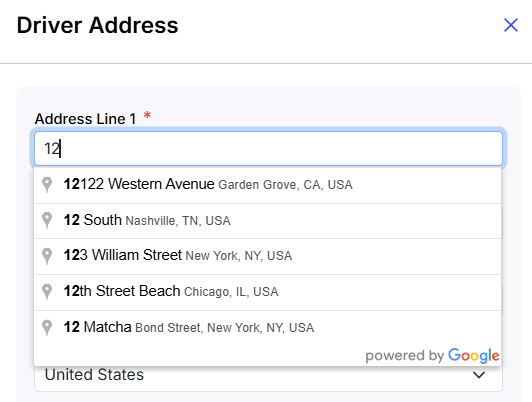
Manual Entry (if Address Not Found)
If autocomplete does not return a match, type the full address directly into each field: Address Line 1, City, State, ZIP, and Country. Country is required and must be selected from the dropdown. On a location company (Shipper/Consignee, warehouse, or Terminal), a valid pin makes Address Line 1 and ZIP optional. City, State, and Country stay required and can be filled from a reverse geocode of the pin.Address Line 2
Address Line 2 is an optional field present on every address form. Use it to specify details critical for drivers:- Suite or office number (for example, Suite 200)
- Apartment number (for example, Apt 125)
- Dock or door number (for example, Dock 3)
- Building number or floor
Map Coordinates
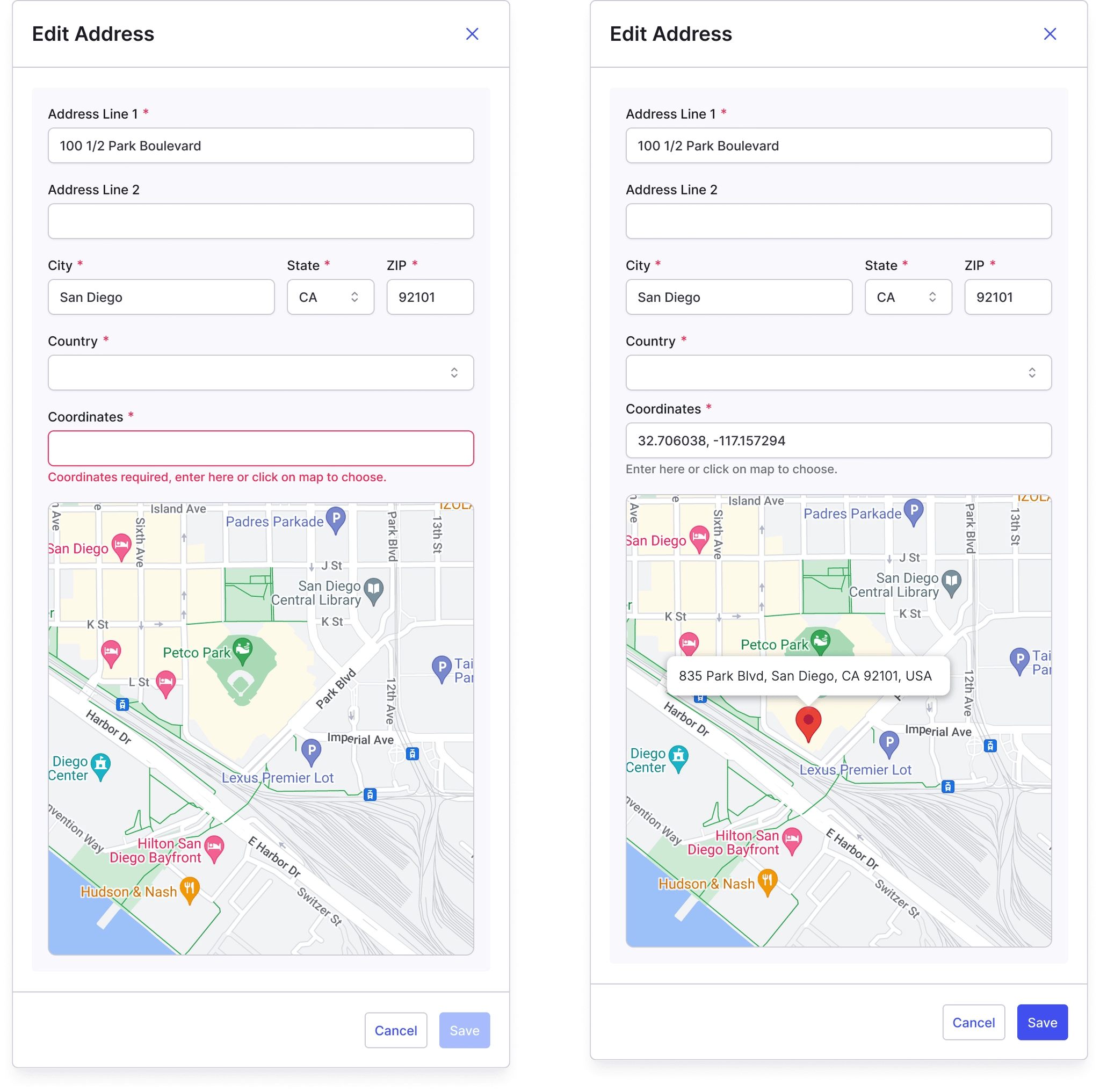
For addresses where precise geolocation is required — remote jobsites, yard gates, or stops that do not geocode to the right point — set the exact coordinates by typing them or dropping a pin on the map:- Type latitude and longitude directly into the Coordinates field using the format “lat, lng” (decimal degrees; not
0,0). - Click anywhere on the map to drop a pin at that location, or drag the existing pin to adjust the position.
Settings and Permissions
Access to address input is governed by the permission required to edit the parent record.- Editing stop addresses on a load requires the “Dispatch” permission.
- Editing Customer or Broker/3PL profile addresses requires the “EditCustomer” permission.
- Editing location companies (Shipper/Consignee, Cold Warehouse, Dry Warehouse, Terminal) and other non-customer company types requires the “EditCompany” permission. The same permission gates the Coordinates section and the coordinates editor on the company profile — Support is not required.
- Editing asset record addresses (trucks, trailers) requires the “EditAsset” permission.
- Editing driver profile addresses requires driver record edit access.
Limits and Behavior
- Country is required when entering an address manually. Google autocomplete fills Country automatically when a suggestion is selected.
- Address Line 2 is always optional. Leaving it blank does not prevent saving the record.
- Coordinates are optional on load stops.
- The interactive map pin is available on load stop address forms when the location mode is set to Address, and on location company create/edit (Shipper/Consignee, warehouses, Terminal). On other forms, the map is often a read-only preview when coordinates have been set.
- With a valid pin on a location company, Address Line 1 and ZIP are optional; City, State, and Country stay required.
- When you click the map to set coordinates, existing user-entered Address Line 1, City, State, and ZIP values are preserved.
- Editing the street, city, state, or ZIP on a location without resetting the pin in that same edit drops the stored pin so the new address can be geocoded. Set or keep the pin in the same save if the point must stay.