
Geofences are virtual boundaries around stop locations that automatically prompt drivers using the Alvys Mobile App to check in or out when they enter the configured area. Configuring an arrival radius per subsidiary lets your team capture more accurate arrival times without requiring dispatch to manually prompt drivers.
Overview
The Geofence Notification feature lets you define an arrival radius for each subsidiary. When a driver’s device enters that radius, the Alvys Mobile App sends a push notification reminding them to check in. Geofences are configured per subsidiary, so different parts of your company can use different radius sizes. Synonyms: geofencing, arrival radius, location-based check-in, proximity notification, geofence alert.Before You Start
Before configuring geofences, confirm the following:- You are logged in to Alvys.
- You have access to Management > Company Profile.
- Drivers you want to receive notifications are on the latest version of the Alvys Mobile App. Geofence notifications only work on the latest app version; there is no way to force a driver to update.
Steps
- Navigate to Geofence Settings
- In the left navigation, go to Management and select Company Profile.
- In the subsidiary panel on the left, select the subsidiary you want to configure.
- Confirm you are on the General Info tab.
- Scroll down to the Geofence Notification section.
- To turn geofences on, click the Geofence Notification toggle to the on position. A configuration dialog opens automatically.
-
To turn geofences off, click the Geofence Notification toggle to the off position. The geofence configuration is removed for that subsidiary.
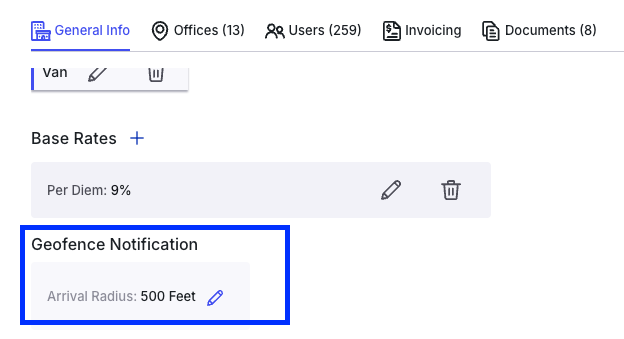
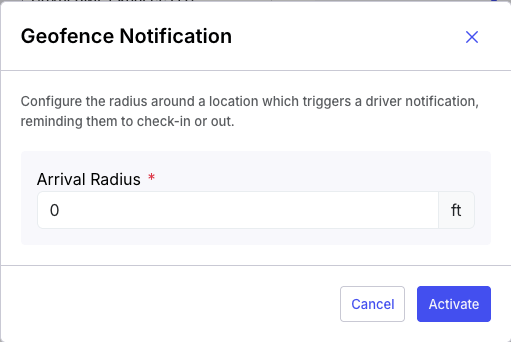
- Set the Arrival Radius When you enable the toggle (or click the edit icon on an already-enabled subsidiary), the Geofence Notification dialog opens.
- In the Arrival Radius field, enter the radius in feet. A recommended starting value is 500 ft.
-
Click Activate to save the configuration.
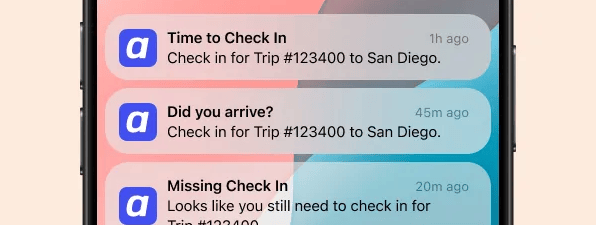
- Confirm Mobile Notifications Are Active
Result
Once activated, the Alvys Mobile App monitors the driver’s location relative to stop locations on their assigned trip. When the driver’s device enters the configured arrival radius, they receive a push notification prompting them to check in.💡 Since this is a mobile app feature, drivers must be on the latest version of the Alvys Mobile App to receive geofence notifications. There is no way to force a driver to perform this update.