
Bulk Actions lets planners select multiple trips in the Trips table and apply an operation to all of them at once — turning an hours-long manual process into a two-click workflow.
Overview
Bulk Actions is available to all Dispatch Planner users at no additional cost. Six operations are supported:Before You Start
Before using Bulk Actions, confirm the following:- You have access to Loads and Trips > Dispatch Planner v2. All authenticated Alvys users can access Dispatch Planner v2.
- The trips you want to act on are visible in the Trips table and are in a status eligible for the operation you intend to apply (see the table in Overview above).
How to Use Bulk Actions
Select trips
- Navigate to Loads and Trips > Dispatch Planner v2.
- In the Trips table, select trips using the checkbox column:
- Click a checkbox individually to select a single trip.
- Shift-click a second checkbox to select all trips in the range between the two.
- Click the checkbox in the column header to select all trips on the current page.
Apply an operation
- Once trips are selected, a floating bar appears over the Trips table. The bar shows how many trips are selected, a close button, and up to four actions.
- Click the action you want. If the action is not on the bar, click More actions and choose it from the menu.
- Confirm in the modal. Bulk Actions applies the change to every selected trip.
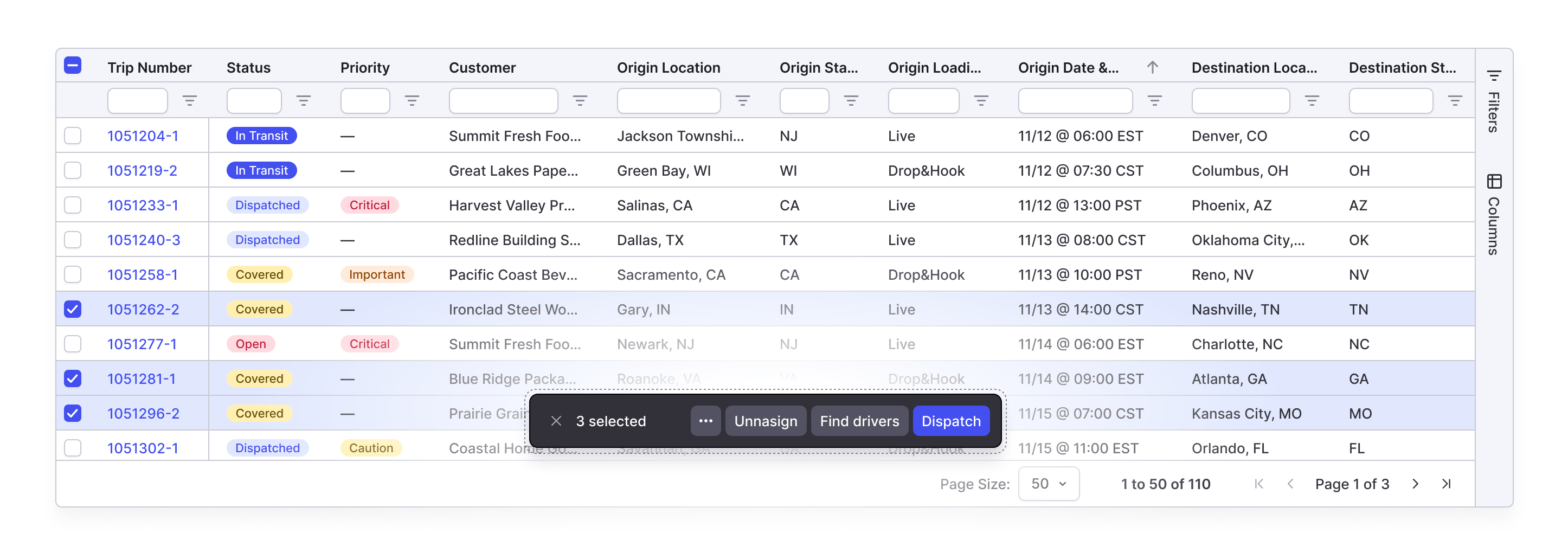
Selecting trips and using the bulk action bar
If an action is unavailable for the trips you selected, the bar shows why, including inside More actions. On a narrow screen, the bar collapses into one Actions menu. When a second table is open in Dispatch Planner, the bar has less room, so more actions move into More actions.
Using Bulk Actions with Find Drivers
When choosing Find Drivers, a driver selection table appears at the bottom of the screen.- Select a driver from the bottom table.
- Take the assignment action from the side panel.
- The action applies to all selected trips at once.