
Dispatching a load assigns a driver, truck, and trailer to a trip and advances the trip to Dispatched status, signaling the load is ready to move.
Overview
Dispatching a load connects a trip to a driver and equipment so the load can move. Once dispatched, the trip advances to Dispatched status, which updates all parties that the load is assigned and ready. There are two ways to dispatch: the standard flow, where you assign assets and then dispatch in separate steps, and the preference dialog flow, which appears when assignment preferences are configured and lets you assign and dispatch in a single action. Synonyms: assign a load, cover a trip, send a load, book a driver, schedule a trip, undispatch a load, revert a dispatch, reassign driver after dispatch.Before You Start
Before dispatching a load, confirm the following:- The trip you want to dispatch is in Open, Planned, or Covered status in the trips grid.
- You have a driver, truck, and trailer available to assign.
- All authenticated Alvys users can access Dispatch Planner v2, the Load board, or the load page.
- If you want the preference dialog flow to appear, dispatch preferences must be configured for the driver or carrier in advance.
- The driver you want to assign exists in Alvys under Assets > Drivers. If the driver does not appear in the Manage Assets assignment field, Alvys will not display an error: add the driver record under Assets > Drivers first, then return to dispatch.
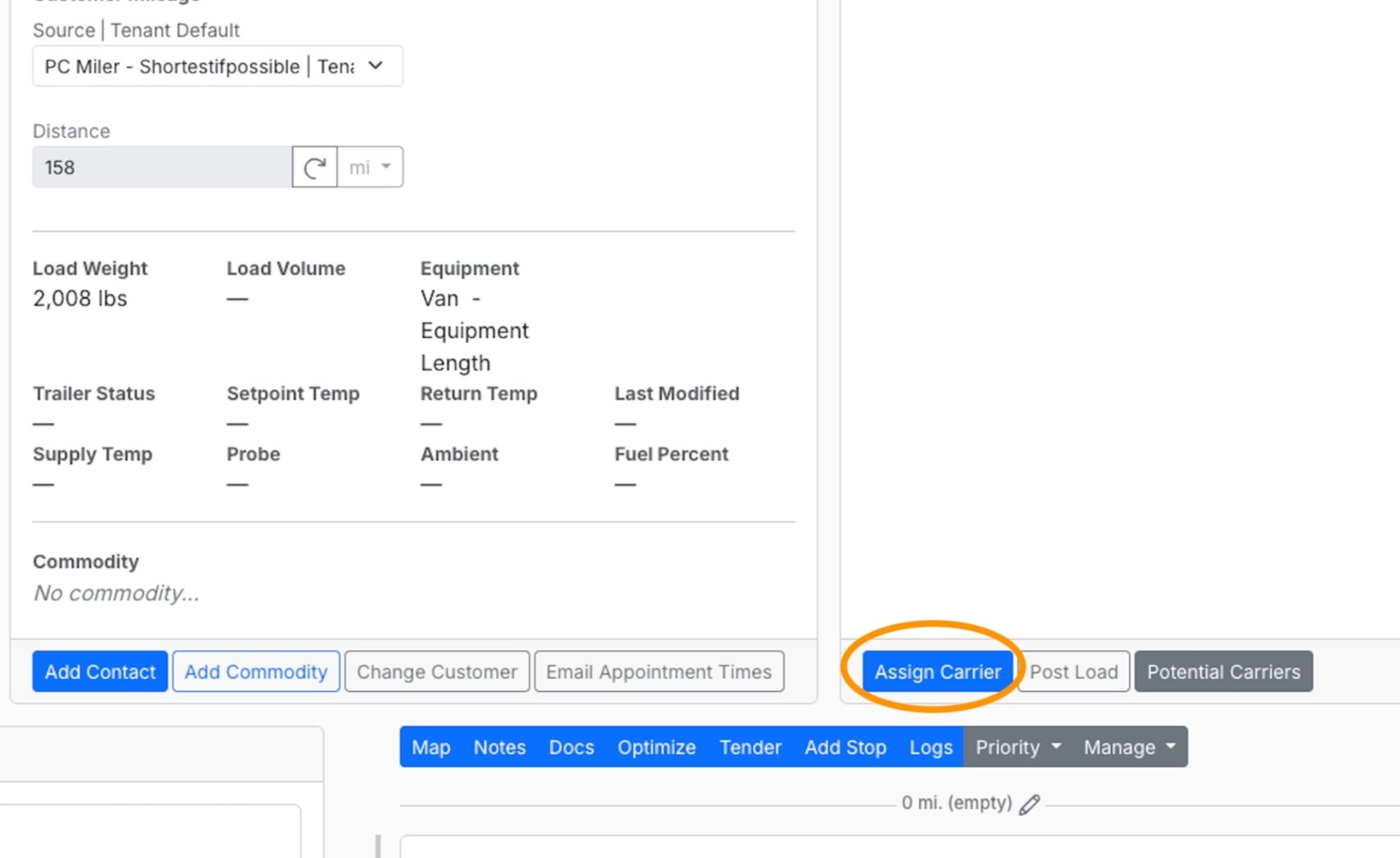
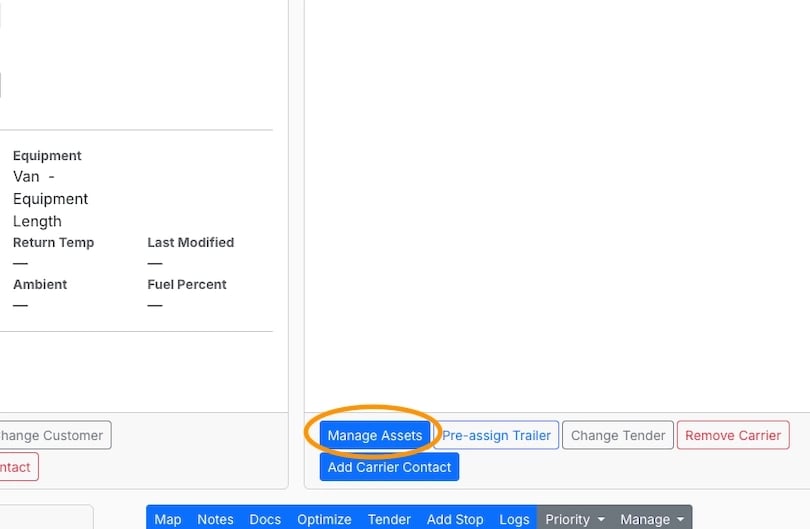
- You have permission to access Manage Assets. To assign a driver from a load or trip, open the load, then click Assign Carrier or Manage Assets in the Carrier Details panel on the right side of the screen. If neither button appears, contact your administrator to confirm your account has the required view and assign permissions.
Dispatch a load from different areas in Alvys
Dispatch Planner v2
Open the Dispatch Planner v2 module- In the left navigation menu, select the Loads and Trips icon.
- Click Dispatch Planner v2 from the menu options.
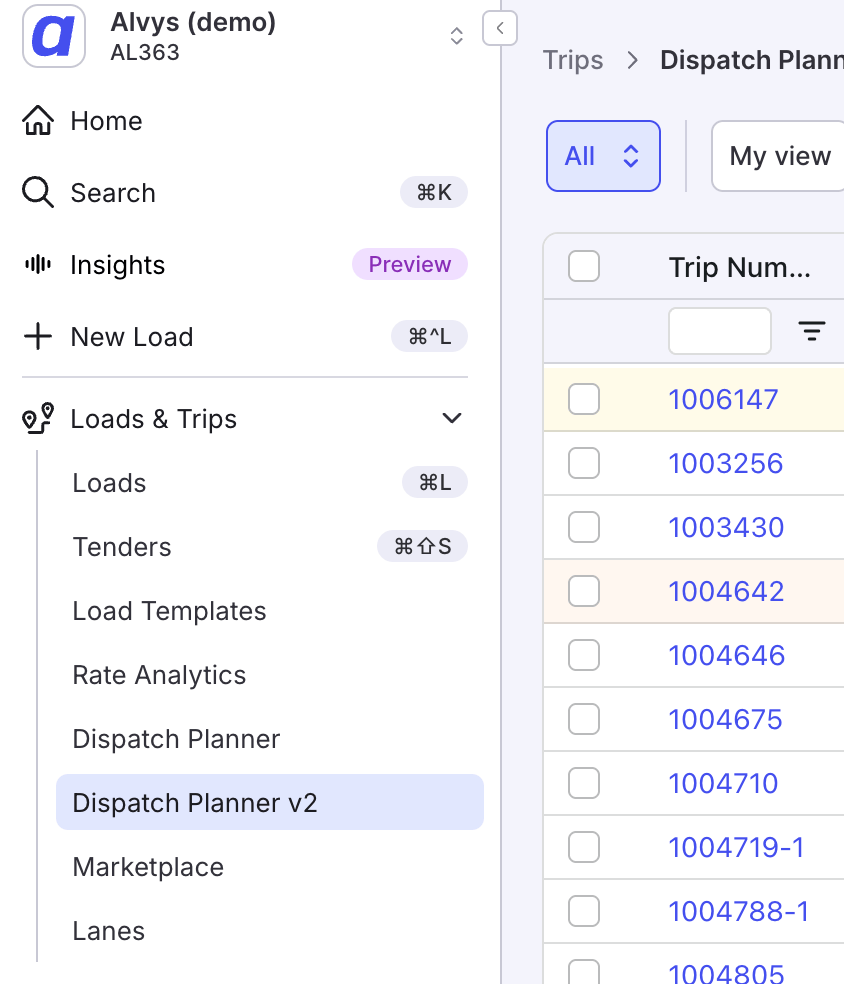
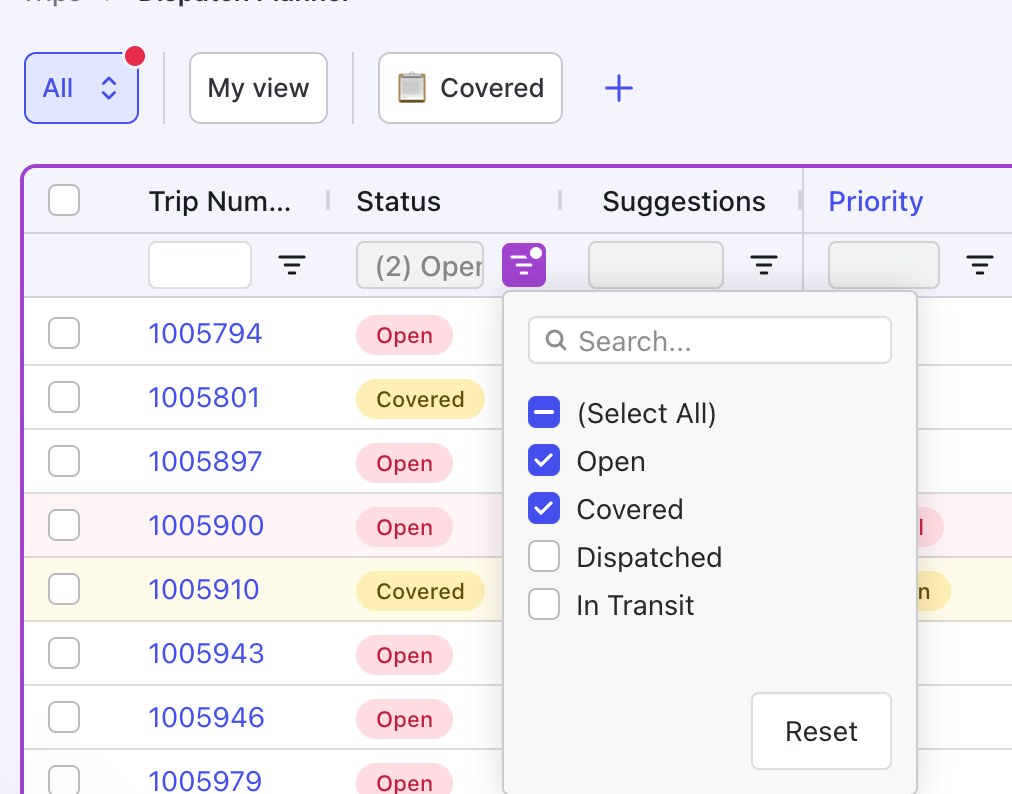
- In the trips grid, locate the load you want to dispatch. The trip must have a status of Open or Covered to be available for dispatch.
- Check the checkbox to the left of the trip row. When one or more rows are selected, action icons appear in the toolbar at the top right: Unassign, Dispatcher, Priority, Find drivers, and Dispatch.
- Click Dispatch in the toolbar. The trip advances to Dispatched status.
Load board
Open the Load board module- In the left navigation menu, select the Loads and Trips icon.
- Click Loads from the menu options.
- In the Loads table, locate the load you want to dispatch. The load must have Open or Covered status in order to be dispatched.
- Right-click the selected load or trip row to open the menu and choose Manage Assets.
Load page
Also known as: load screen. Find the load in order to open the load page- Use Global Search to find the item quickly from anywhere in the system.
- Alternatively, open it directly from Dispatch Planner v2, the Load board, Driver Settlements, or any Report.
- In the Carrier Details panel on the right side of the screen, click Assign Carrier or Manage Assets in the bottom left of that panel.
- In the asset assignment fields, select the driver for this trip.
- Select the truck.
- Select the trailer.
- Select the Dispatcher.
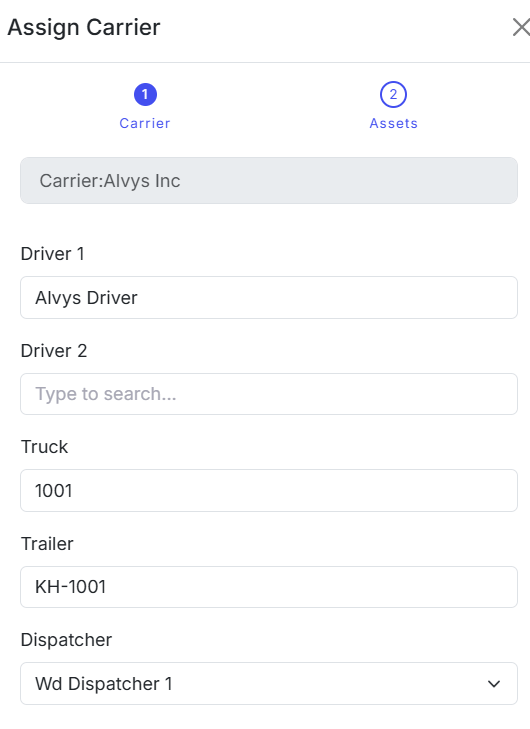
- Click Assign to assign the assets to the trip. The trip advances to Covered status, and is not yet dispatched.
- Or click Assign and Dispatch to assign and dispatch the trip in a single step.

Result
After dispatching, the trip status updates to Dispatched. This status confirms that a driver and equipment have been assigned and the load is ready to move.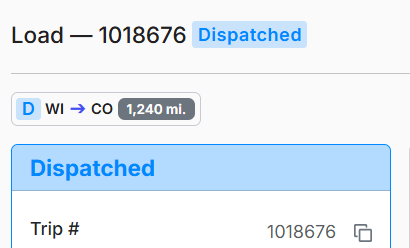
Variations
Dispatch using assignment preferences (assign and dispatch in one step)
When assignment preferences are configured for a driver or carrier, Alvys may display an assignment preferences suggestion modal when you open the trip. This modal offers two actions:- Assign: assigns the suggested assets to the trip without dispatching. The trip advances to Covered status but is not yet dispatched.
- Assign and dispatch: assigns the suggested assets and dispatches the trip in a single step. The trip advances to Dispatched status immediately.
Dispatch without a trailer
If a trip does not require a trailer or no trailer is currently available:- Complete the steps above, leaving the trailer field empty.
- Click Assign and Dispatch to assign and dispatch in a single step.
Sequential Dispatch Enforcement
When Sequential Dispatch Enforcement is enabled for your tenant, Alvys blocks a dispatcher from assigning a driver or truck that already has a trip in Dispatched or In Transit status. A block message appears naming the conflicting driver or truck and the conflicting trip: the overlap must be resolved before the dispatch can proceed. Sequential (back-to-back) trips are not affected. The block only fires when the earlier trip is still active. If the first trip is already Delivered before the second is dispatched, no conflict is raised.What is enforced: Driver overlap and truck overlap. Both are controlled by a single toggle; there is no separate setting for each.What is not blocked: Trailer overlap. Trailers are commonly shared across trips (drop-and-hook operations), so a trailer conflict never stops the assignment. You are warned about it instead: see Equipment conflict warnings below.
Equipment conflict warnings
Whenever you assign a trailer or a truck that is already committed to another trip over the same period, Alvys tells you which trip it is on before the assignment goes through. This is a warning, not a block: you can read it and still continue. It appears wherever you assign equipment, including the Manage Assets wizard, the pre-assign trailer dialog, the loads board, and both versions of the Dispatch Planner. Routine pre-planning does not trigger it. If a truck finishes one trip today and starts another tomorrow, that is not a conflict and you see no warning. When a warning appears:- Only trips in Dispatched or In Transit status can conflict. Once the earlier trip is marked delivered, it no longer raises a warning.
- Times are compared, not just dates. A delivery at 10:00 AM and a pickup at 2:00 PM the same day is a four-hour gap, and Alvys treats it as one.
- Where a stop actually happened, the real arrival or departure time is compared instead of the scheduled one.
- Boundaries count as an overlap. A trip delivering at 2:00 PM and another picking up at exactly 2:00 PM is flagged.
- An active trip is treated as holding its equipment until at least the present moment. If the earlier trip is still Dispatched or In Transit past its scheduled delivery, because nobody marked it delivered or it is running late, you get a warning even though the plan said the equipment was free.
- If either trip is missing a date, Alvys shows the warning rather than staying silent about an overlap it cannot rule out.
Troubleshooting
Assign and Dispatch buttons are not available
- Confirm that a driver and truck have been selected in the asset assignment fields. The dispatch action requires at least a driver and truck before it becomes available.
- Confirm the trip is in Open or Planned status. Trips in other statuses may not support dispatch from this panel.
- Check whether another user is editing the same trip simultaneously. If so, wait a moment and refresh the page.
- If none of the above apply, contact Alvys support with the trip ID and a description of what you are seeing.
Load does not appear in the trips grid
- Check whether any column filters are active in the trips grid. Active filters may be hiding trips: clear all filters and check again.
- Confirm the trip’s current status. Trips in statuses other than Open or Planned may be filtered out of the default grid view.
- Confirm you are in the correct view within Dispatch Planner v2 and that the correct date range is selected.
- If the trip still does not appear, contact Alvys support with the load number and the status you expect the trip to be in.
Trip status did not update after dispatching
- Refresh the page. Status updates occasionally require a page refresh to display.
- Confirm you clicked Dispatch (not just Assign) in the standard flow, or Assign and dispatch in the preference dialog flow. Clicking Assign alone advances the trip to Covered status but does not advance it to Dispatched status.
- Check for any error notification that appeared when you clicked. An error indicates the action did not complete.
- If the status is still incorrect after refreshing and confirming the correct button was used, contact Alvys support with the trip ID.